Krak Stack sends operational documents: releases, lease confirmations, quotations, invoices and statements: directly to your counterparties. Those emails must come from your company domain, not from a shared platform address. This guide covers the three steps required: creating a sending account, verifying your domain, and adding the resulting key to your workspace.
Estimated time
About 15 minutes, plus the time your DNS provider needs to publish the records: usually a few minutes, occasionally up to 24 hours.
Why this configuration exists
An email is only delivered reliably when the receiving mail server can confirm that the sender was authorised to send on behalf of the domain in the address. Configuring your own domain gives you three things:
- Your identity. Documents arrive from operations@yourcompany.com, not from a generic platform address. Counterparties recognise the sender and replies reach your own mailbox.
- Your sending reputation. Deliverability is tied to the domain that sends the message. When you send under your own domain, that reputation belongs to you and is not affected by other companies.
- Traceability. Every document sent from Krak Stack is logged against your domain, which matters when a counterparty disputes whether a release or an invoice was ever issued.
Krak Stack uses Resend as the sending service. Resend is the technical carrier; the domain, the key and the reputation remain yours, and you can revoke access at any time.
Step 1: Create your Resend account
- 1
Create the account
Go to resend.com and sign up with a company email address. Use a shared address such as it@yourcompany.com rather than a personal one, so access survives staff changes.
Resend: Sign upFig. 1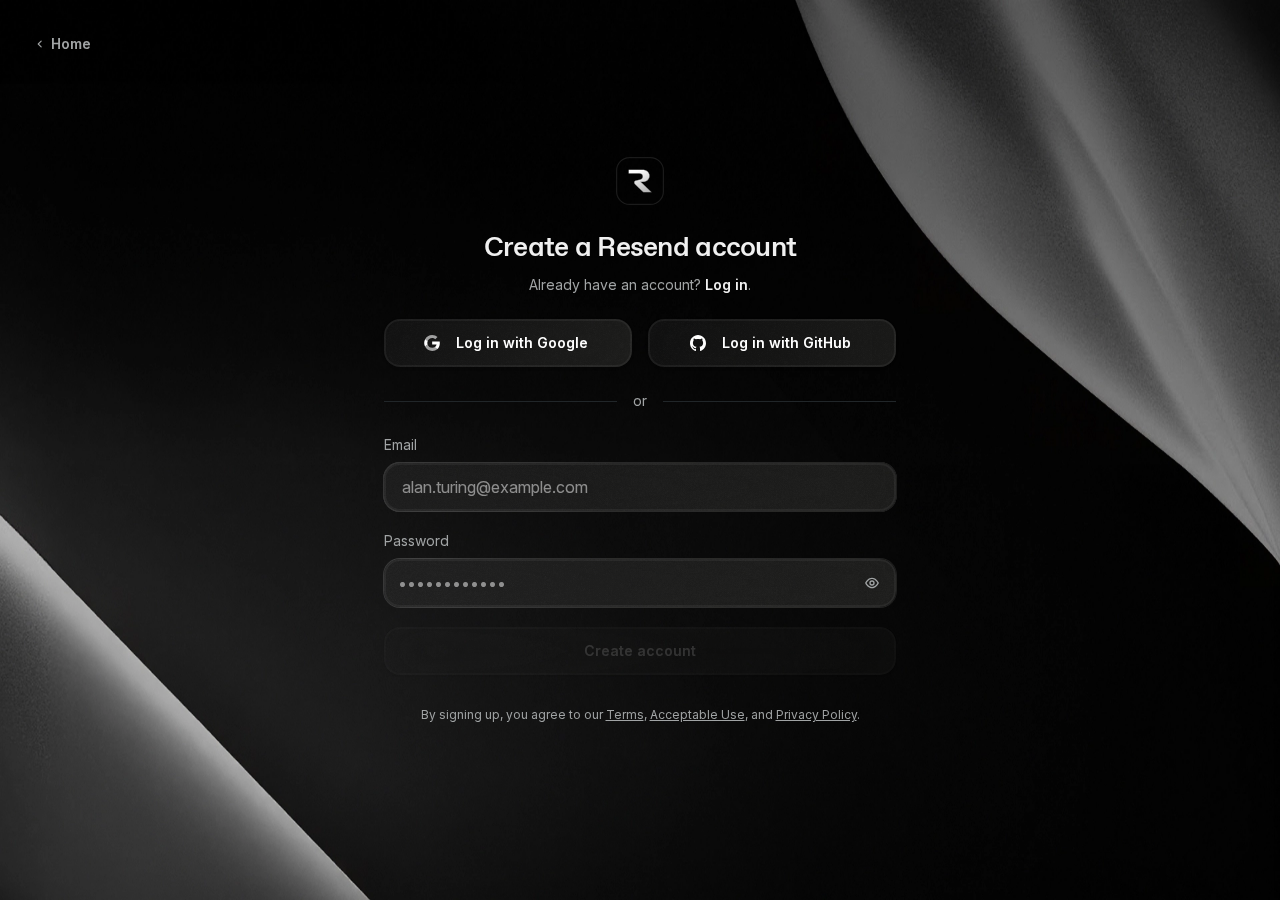
Figure 1. The sign-up page. Use a shared company address so access survives staff changes. - 2
Open the Domains section
In the left-hand menu of the Resend console, select Domains, then Add Domain.
Resend console: Domains › Add DomainFig. 2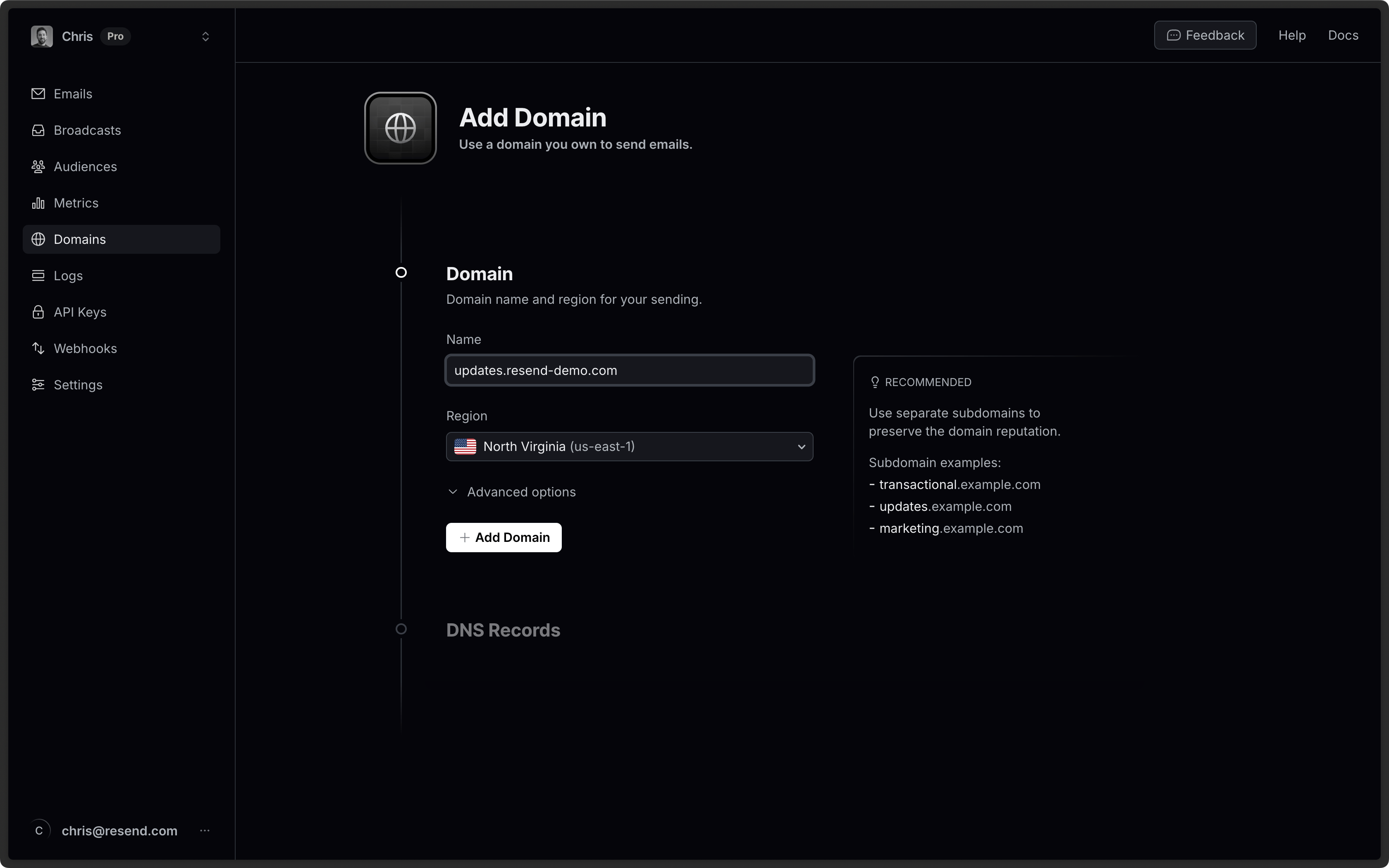
Figure 2. Domains sits in the left-hand menu; Add Domain opens the form with the name and region fields. - 3
Enter your sending domain
Enter the domain your documents should be sent from: for example yourcompany.com. We recommend a dedicated subdomain such as mail.yourcompany.com, which keeps operational sending separate from your day-to-day mailboxes. Choose the region closest to your operations, then confirm.
Resend console: Domains › your domainFig. 3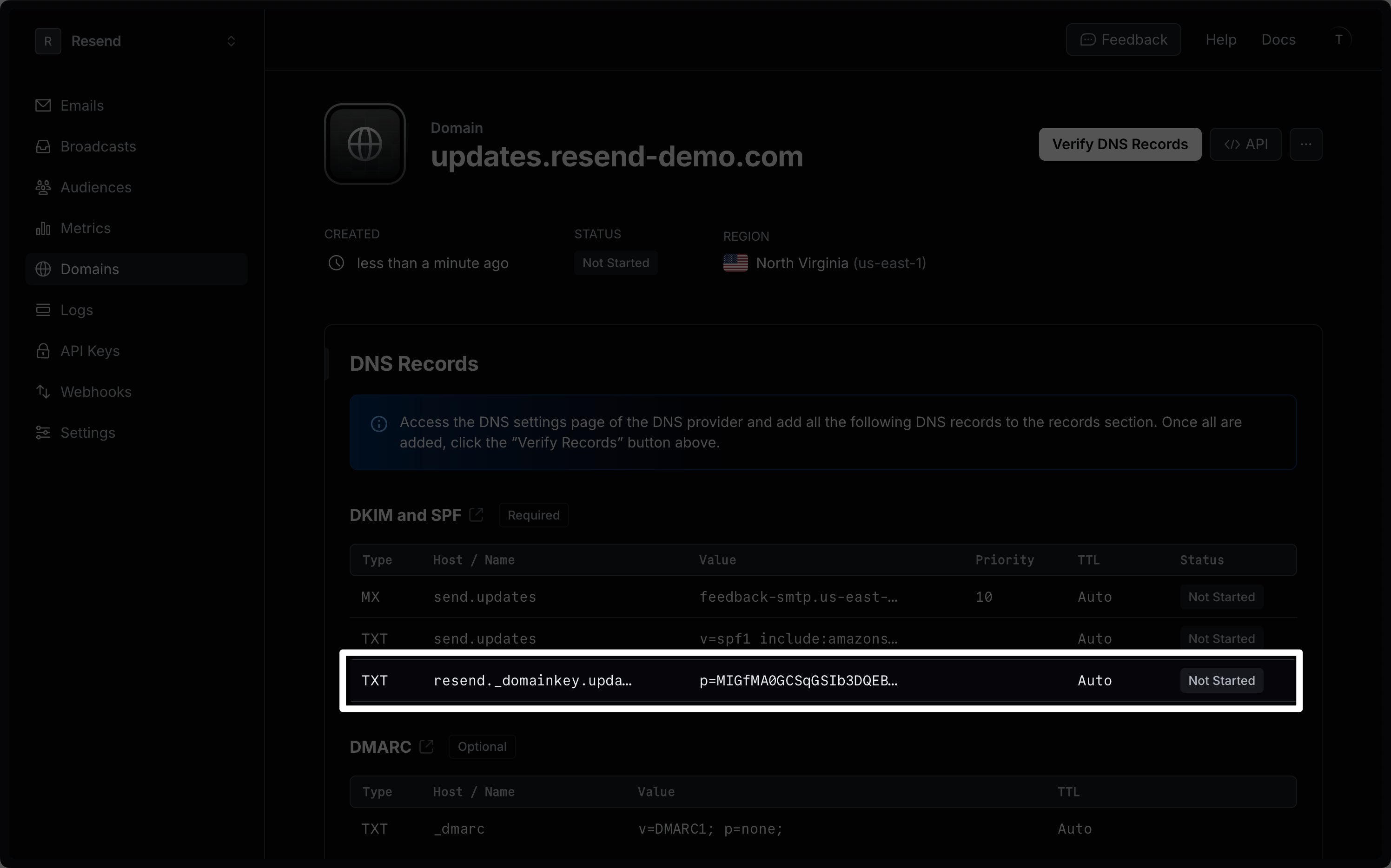
Figure 3. Once confirmed, the domain page opens with the chosen region and the generated DKIM signing key.
Step 2: Verify the domain with DNS records
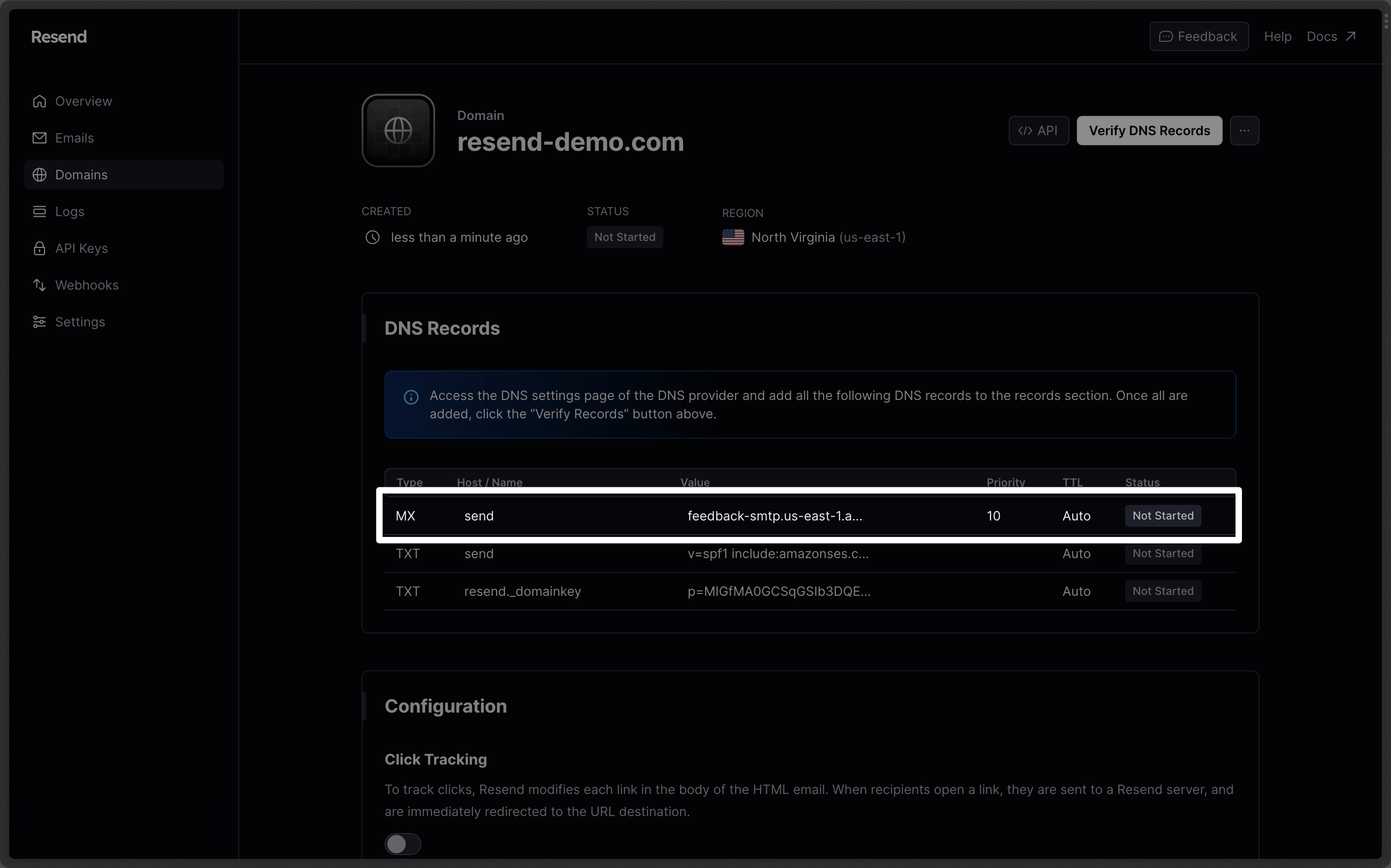
Once the domain is added, Resend displays a list of DNS records. These records are the proof of ownership: until they are published, no email can be sent from your domain. They must be added at the provider that hosts your domain's DNS: usually your registrar, your web agency, or your IT provider.
| Record | Purpose | Typical value |
|---|---|---|
| MX | Routes bounce and feedback messages back to the sending service. | feedback-smtp.<region>.amazonses.com |
| TXT (SPF) | Declares which servers are allowed to send for your domain. | v=spf1 include:amazonses.com ~all |
| TXT (DKIM) | Signs each message cryptographically so it cannot be forged. | A long key provided by Resend |
| TXT (DMARC) | Tells receiving servers what to do with unauthenticated mail. | v=DMARC1; p=none; |
The records requested by Resend and what each one does.
Copy each record exactly as shown in the Resend console: the values are unique to your domain. When they have been published, return to Resend and select Verify. The domain status changes to Verified.
This step often requires your IT provider
Publishing DNS records is not something most operators do themselves, and a mistake in these records can disrupt your existing email. If your domain is managed by an agency or an IT provider, send them the instructions below rather than editing the zone yourself.
Instructions to forward to your IT provider
Copy this message, replace the placeholders, and attach a screenshot of the Resend DNS page.
Subject: DNS records to publish for our transactional email domain

Hello,

We are setting up outbound transactional email for our container operations platform (Krak Stack), using Resend as the sending service.

Could you publish the following records in the DNS zone of <yourcompany.com>:

1. MX record on the sending subdomain, pointing to the host indicated by Resend, priority 10.
2. TXT record (SPF) authorising Amazon SES, as provided by Resend.
3. TXT record (DKIM) containing the public signing key provided by Resend.
4. TXT record (DMARC) on _dmarc, with the policy provided by Resend.

The exact values are unique to our domain and are shown in the Resend console: they are included in the attached screenshot. Please copy them character for character, without adding or removing quotes or trailing dots beyond what your interface requires.

These records only authorise outbound sending. They do not change where our incoming email is delivered, and no existing MX record for the main domain should be modified.

Once the records are published, please confirm so we can run the verification.

Thank you,
Step 3: Create the key and add it to Krak Stack
- 1
Generate an API key in Resend
In the Resend console, open API Keys, then Create API Key. Give it a recognisable name, for example Krak Stack production. Set the permission to Sending access and restrict it to the domain you have just verified.
Resend console: API KeysFig. 5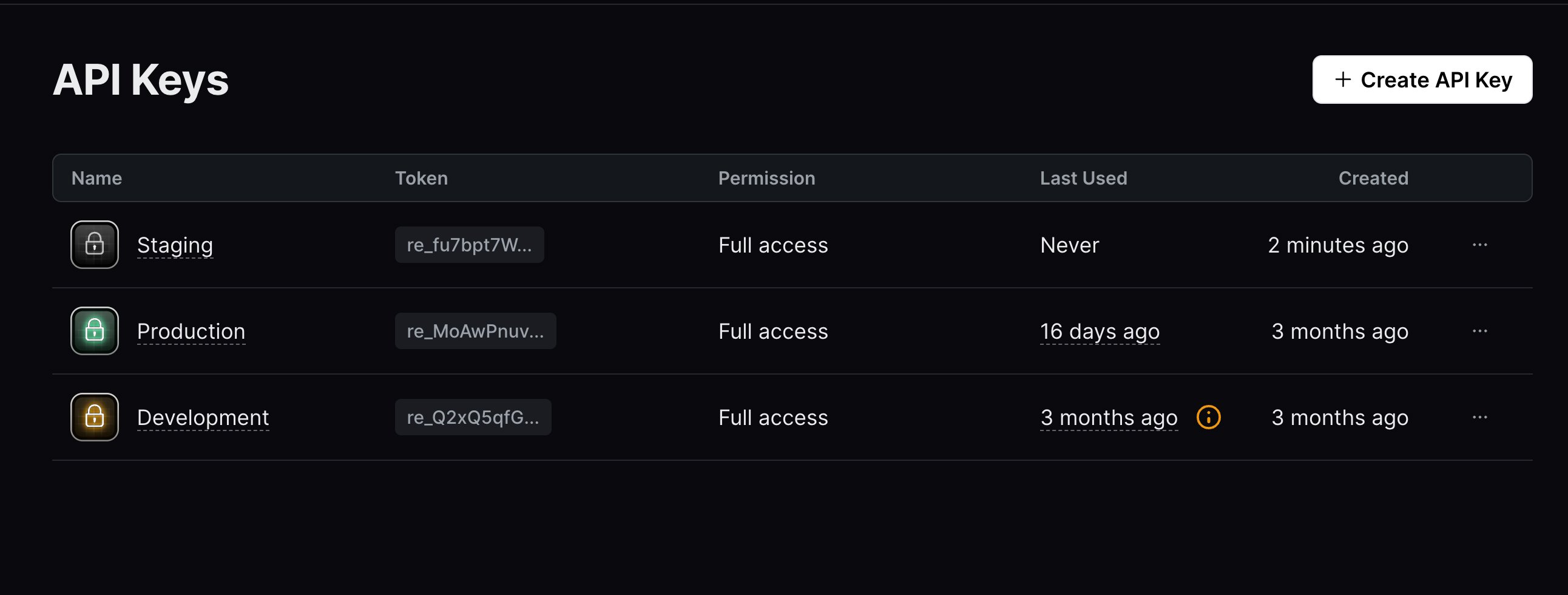
Figure 5. The API Keys page. Create API Key opens the form where you set the permission and restrict the key to your domain. - 2
Copy the key immediately
The key is displayed only once. Copy it straight away. If you lose it, delete the key and create a new one: there is no way to display it again.
Resend console: API Keys › key detailFig. 6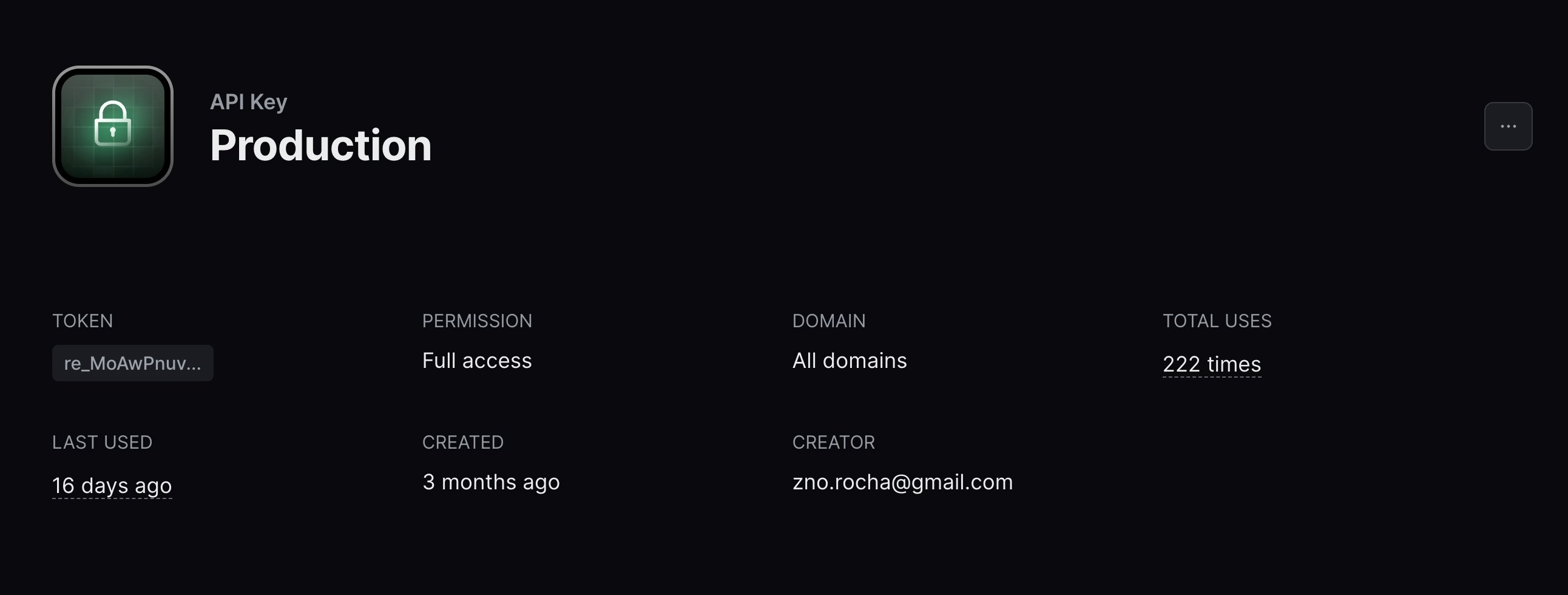
Figure 6. Afterwards only the token prefix remains visible: copy the full key at creation or create a new one. - 3
Paste the key into your workspace
In Krak Stack, open Settings, then Documents and email. Paste the key into the sending key field, enter the sender address (for example operations@yourcompany.com) and the display name your counterparties will see, then save.
Krak Stack: Settings › Documents and emailFig. 7Screenshot to be addedKrak Stack settings page for documents and email, with fields for the sending key, the sender address and the display name.Figure 7. Paste the key, then set the sender address and the display name your counterparties will see. - 4
Send a test
Use Send a test email to confirm the configuration. The message should arrive within a minute, sent from your domain. Check that it lands in the inbox rather than the spam folder.
Krak Stack: Settings › Documents and email › Send a testFig. 8Screenshot to be addedKrak Stack confirmation banner stating that the test email was sent successfully from the configured domain.Figure 8. A successful test confirms the domain, the key and the sender address are aligned.
Configuration complete
From this point, every document sent from Krak Stack: releases, lease confirmations, quotations and invoices: leaves under your domain, and replies arrive in your own mailbox.
Common problems
The domain remains unverified in Resend
The records have not been published, or they were published on the wrong name. The most frequent cause is a duplicated domain suffix: some DNS interfaces append the domain automatically, producing mail.yourcompany.com.yourcompany.com. Ask your provider to check the full resulting name of each record. If everything looks correct, allow up to 24 hours for propagation before verifying again.
The key is refused when saved in Krak Stack
The key was created without sending rights, or it was restricted to a different domain. In Resend, open API Keys and confirm the permission is Sending access and that the domain restriction matches your verified domain. A key limited to read-only access cannot send. Delete it, create a new one and paste it again.
Emails are rejected or land in spam
This usually means the domain is verified but the SPF or DMARC record is incomplete: for example two separate SPF records on the same name, which invalidates both. Ask your provider to merge them into a single record. A brand-new sending domain also has no reputation yet: volumes build up over the first days, and rejections normally stop once regular sending is established.
Recipients see a different sender name
The display name comes from your workspace settings, not from Resend. Open Settings, then Documents and email, and correct the display name and sender address there.
If the domain is still not verified after your provider has published the records, contact us at info@krak-stack.com with a screenshot of the Resend DNS page and we will review the configuration with you.