Bank reconciliation links your bank movements (connected bank or CSV import) to your invoices. Validating a match records the payment and marks the invoice Paid once it is settled.
Krak StackFig. 1
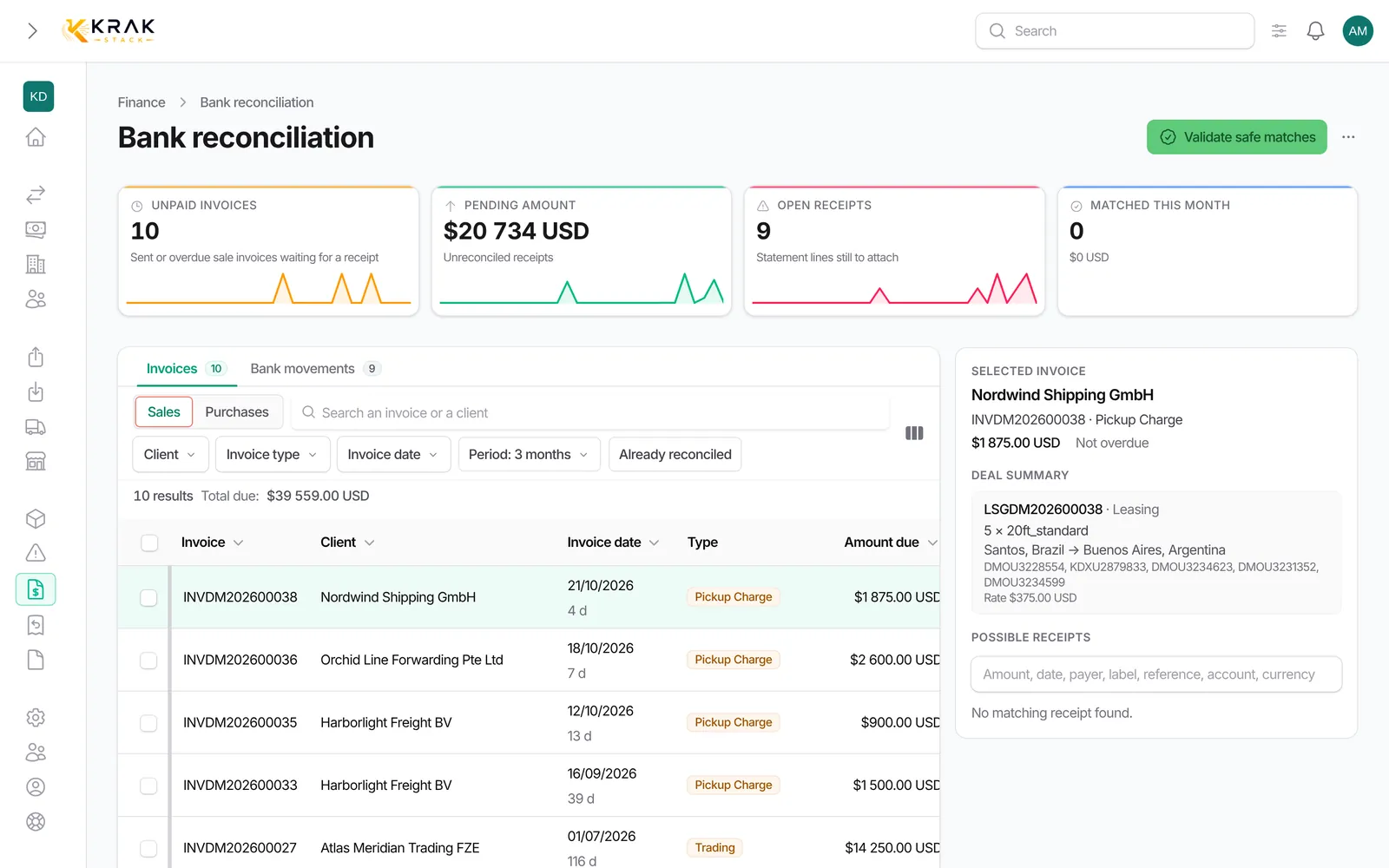
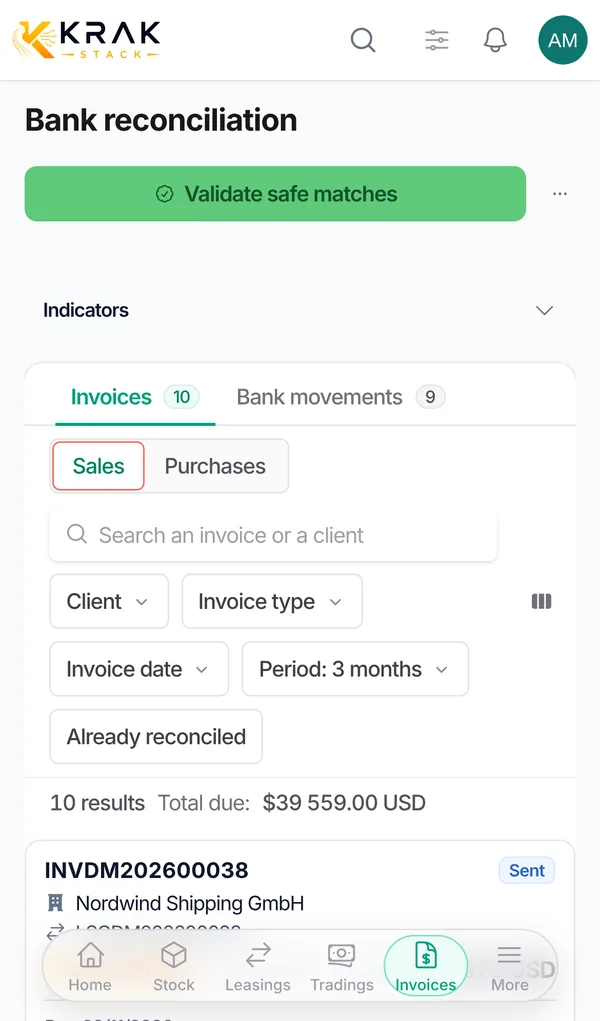
Steps
- Open Finance and click Bank reconciliation. The badge shows the number of pending movements.
- Choose Read from: Invoices (unpaid invoices, then possible receipts) or Bank movements (bank movements, then possible invoices). Switch between Sales and Purchases, or Received and Paid.
- Click a row on the left. On the right, Krak Stack suggests matches, most likely first.
- Read the comparison: Everything matches, or the number of points to check (amount, payer, reference, dates). Compare shows the details side by side.
- Click Attach (or Reconcile with this payment) to validate, or Dismiss to stop seeing that suggestion.
- If Krak Stack asks Confirm this match?, read the Validating will have these effects block, then click Confirm.
Good to know
- A perfect match is validated at once; the Match validated. notification offers Undo for a few seconds.
- Validate safe matches lists the movements that exactly pay invoices they name, or come from a client with no other possible invoice. Untick the lines to leave aside, then confirm.
- For a payment covering several invoices, tick them: the button becomes Reconcile these N invoices with this payment.
- A small gap within the bank fee window is recorded as Bank fees. A bigger gap is treated as a down payment: invoices are paid from oldest to newest and the last one stays open for the remainder.
- Money received is matched with sale invoices; money sent with purchase invoices.
- Different currencies are not suggested automatically. If you attach anyway, Krak Stack asks for the rate applied by the bank and records the exchange difference separately.
- A movement the bank has not confirmed as completed cannot be reconciled.
- Exclude takes a movement out of the queue (bank fees, salary, tax, internal transfer…). Find it again with the Excluded filter and Restore to the queue.
- A transfer naming an invoice already marked paid by hand is attached to that invoice without changing it.
- Cancel the match undoes a validated match: the invoice is no longer paid and the transfer becomes available again.
- The More menu gives access to the Statement (all movements, filterable by account, direction, match status and period), Payer aliases and Import CSV.
Frequently asked questions
What if no receipt is suggested for my invoice?
Search by amount, payer or reference in the search field, or switch to reading from Bank movements.
How do I bring back a suggestion I dismissed by mistake?
Click Restore dismissed receipts.
What happens to the deal when I validate?
The Validating will have these effects block tells you whether the lease or trading deal status changes.
What if the transfer is larger than the chosen invoices?
Add the other invoices it pays. A transfer larger than the billed amount is never suggested automatically.
Can I undo a payment marked by hand from this screen?
No. Use Cancel payment on the invoice.
Why do my new movements not show up?
Check the last synchronisation in the page banner, or import a new CSV statement.