When a client pays, you can record the amount received by hand or let bank reconciliation do it from your statements. Partial payments are tracked until the invoice is settled.
Krak StackFig. 1
Steps
- Open Finance and click the sale invoice.
- For an amount received, click Record a payment and enter the Amount received, the Received on date and, if possible, the Transfer reference.
- To settle the invoice directly, click Set as Paid and enter the payment date.
- For several invoices, tick them in the list, click Mark as paid and choose the date.
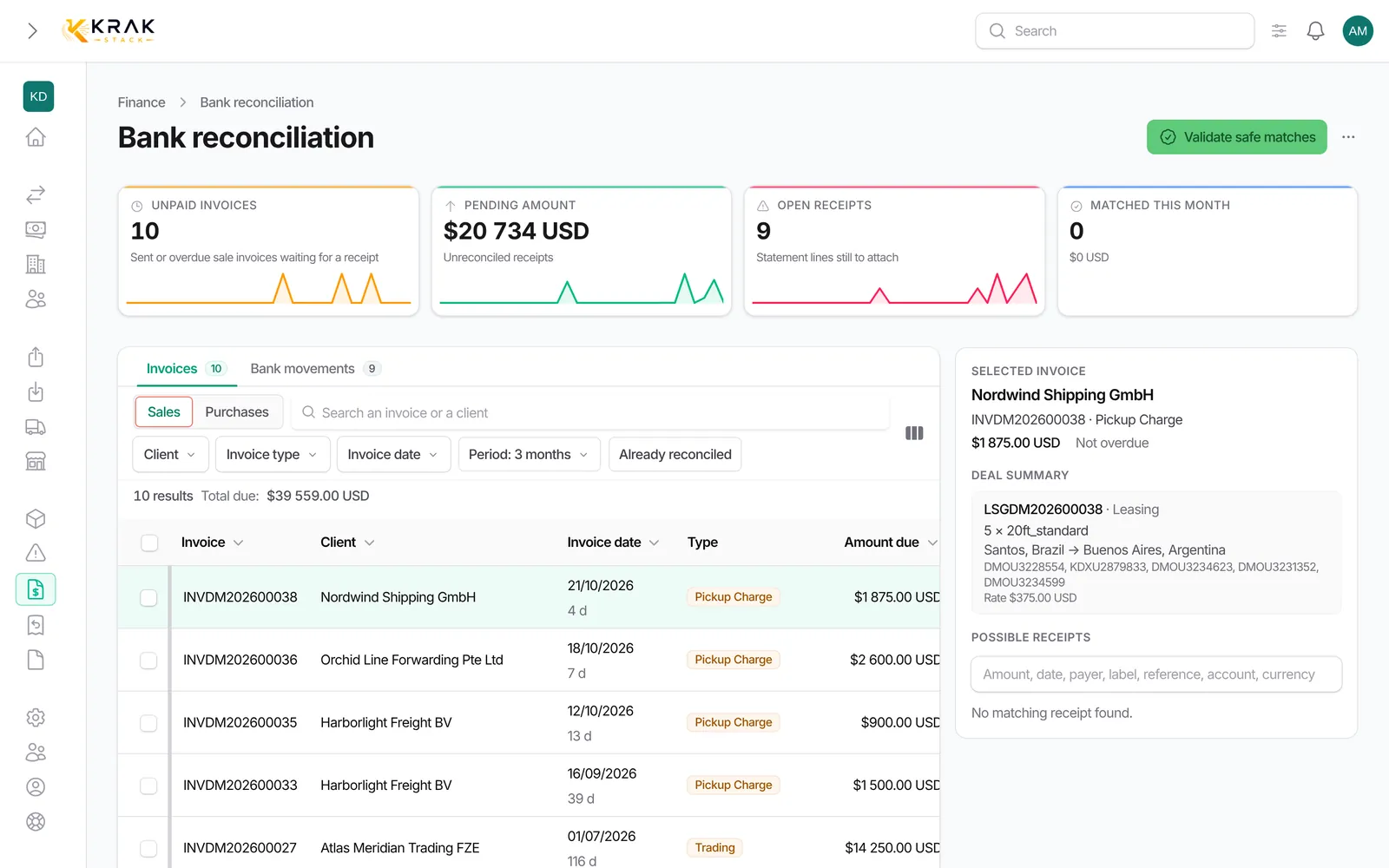
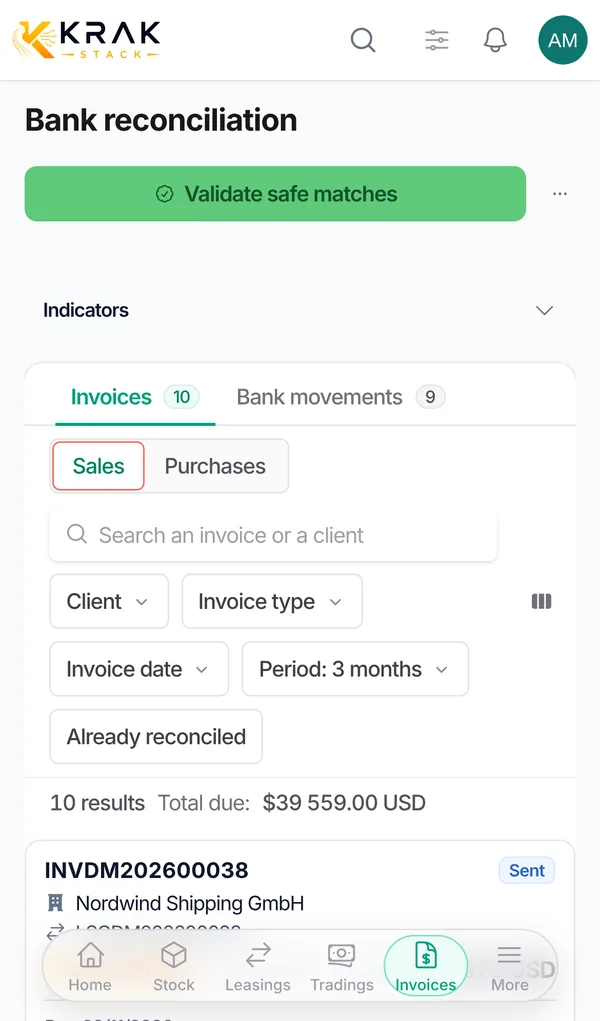
- To work from your bank movements, click Bank reconciliation at the top of the Finance list. See Reconcile payments.
Good to know
- Record a payment is only possible on a Sent or Overdue sale invoice that still has a balance due. The amount cannot exceed that balance.
- Until the invoice is settled, it shows the Partial badge and the Balance due column shows what is missing. The Partially paid filter groups them.
- When the payments clear the invoice, it becomes Paid on the date of the last payment.
- Set as Paid on a partly paid invoice records the rest as a Settled gap.
- A purchase invoice can be marked paid from the draft stage.
- Bulk Mark as paid skips drafts, invoices already paid and proformas: the window tells you how many invoices will be processed.
- The invoice's Payments received section lists each payment and its origin. Remove a payment removes a manual entry or a settled gap; a paid invoice then returns to Sent or Overdue.
- Cancel payment returns a paid invoice to its previous status and clears its collection date. A trading deal already completed stays completed.
- The Origin column shows how the invoice was settled: Manual entry, Reconciled, System or Settled by credit note.
- Marking paid, recording and canceling a payment require specific permissions.
Frequently asked questions
The client paid a down payment: what should I do?
Record the amount received with Record a payment. The invoice stays open for the balance due and keeps being reminded.
Can I correct the payment date?
Yes: in the Finance list, click the date in the Paid At column of a paid invoice (permission required).
I marked the invoice paid by hand, then the transfer arrived in the bank: what now?
In bank reconciliation, attach the transfer to the invoice already paid. The invoice and its payment date do not change.
Why does Remove a payment not offer the bank payment?
A payment that came from reconciliation is removed from reconciliation, with Cancel the match.
The client paid slightly less because of bank fees: what should I do?
Use Set as Paid, or let bank reconciliation record the gap as bank fees.