Depots send stock reports and gate messages by e-mail, or you upload them. The Depot stock reconciliation compares what the depot announces with your open releases and returns, and lets you confirm the movements Krak Stack does not record yet. Nothing changes on a container until you confirm or validate it.
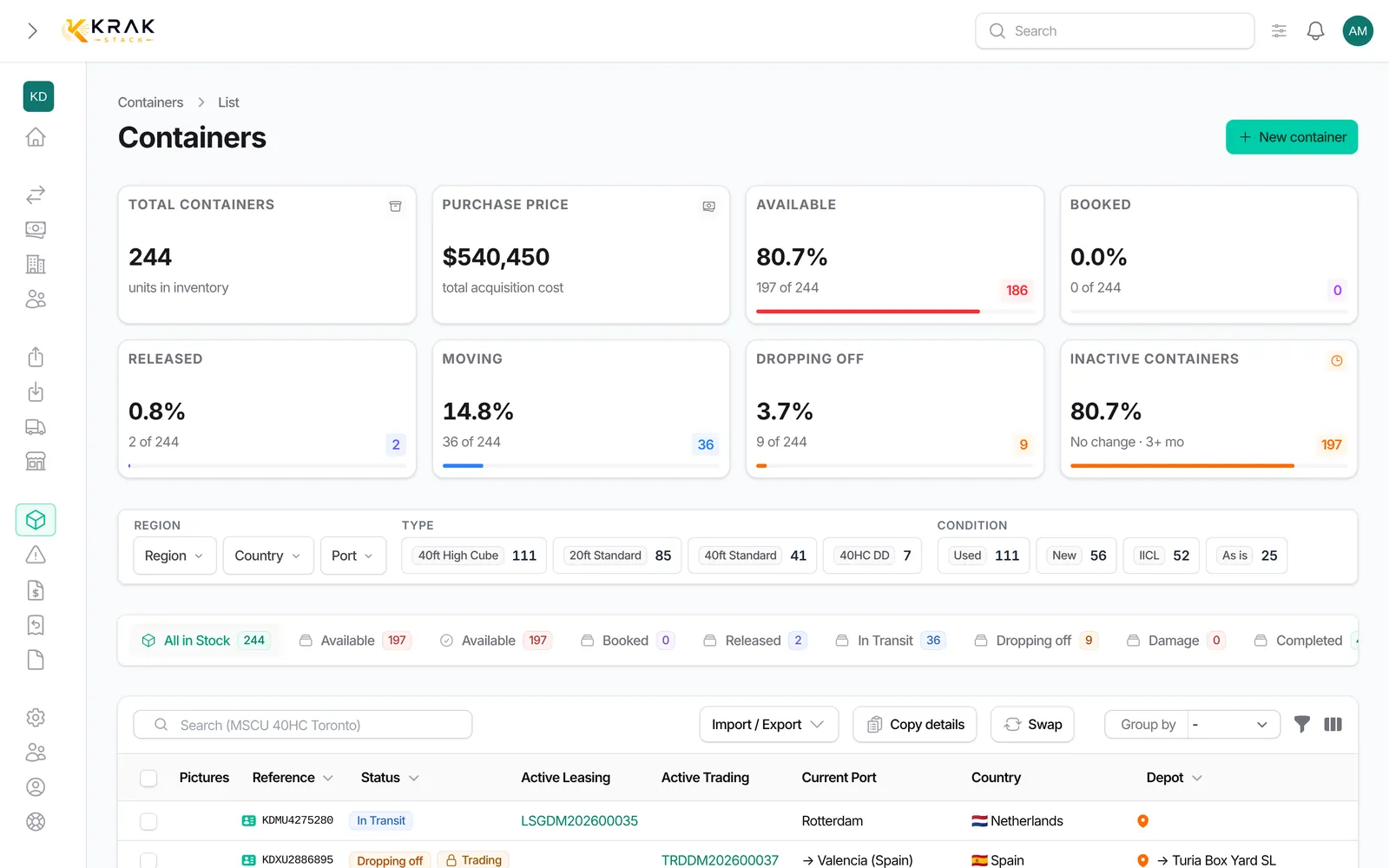
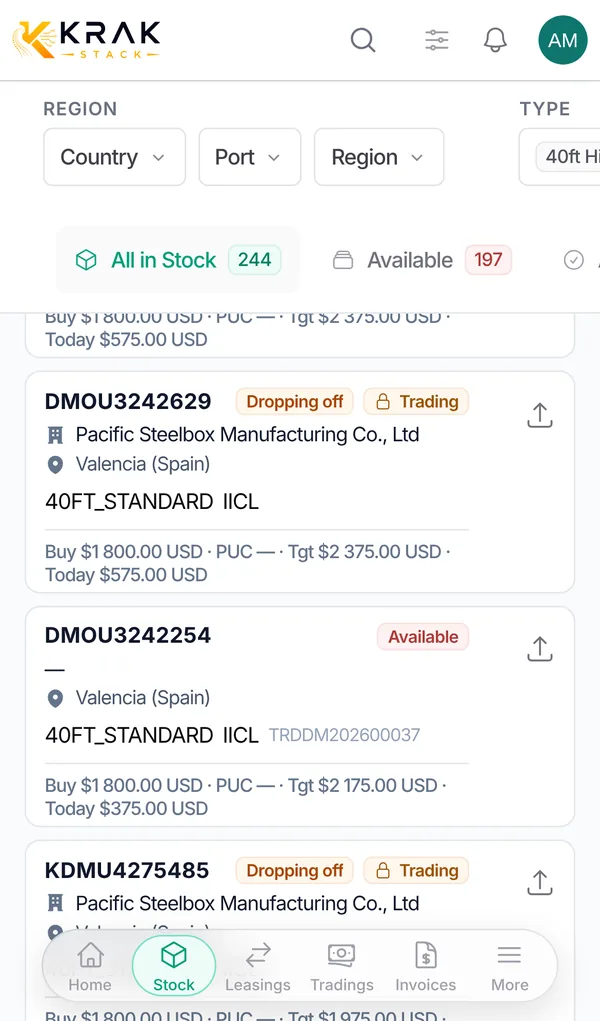
Steps
- In the depots, releases or returns list, click Stock reports. The page opens on the To confirm tab.
- Each card is a movement (Pickup or Drop-off). On the left, What the depot sent: the depot document itself, with the container row highlighted, or the e-mail. On the right, What Krak Stack will write: the document concerned, the Date that will be written and the container status.
- Check, then click Confirm the pickup or Confirm the drop-off. Confirm the certain movements confirms all the certain ones at once.
- In What arrived, select a line and click Check with the document. The depot file opens next to the proposal.
- Read the Source block: Received by, Sender, Subject, File and Depot recognised by. If several documents are possible, choose the Document.
- Click Validate and next: Krak Stack records the line and opens the next one. Skip moves on without deciding, Dismiss sets the line aside with a reason, Close stops.
Good to know
- Depot recognised by tells why the report was attributed to this depot: the deal reference written in the document, the containers quoted in it, a movement expected at this depot, or this sender's previous reports.
- When the depot quotes a reference that is neither the proposed document nor its deal, a warning says so: check before validating.
- If the depot gives no date, you must enter the Date that will be written.
- If the date differs from the one recorded in Krak Stack and the per diem is already invoiced, keep the Krak Stack date unless you also correct the invoice.
- To look at lists containers the depot mentions that no open release or return explains. Nothing is written from there: open the container, or mark it as handled.
- A container missing from a stock list is never recorded as an exit.
- When the container is not found as such in the depot file, the start of the file is shown.
- The page and each action (validate, choose, dismiss) depend on specific access rights.
Frequently asked questions
Does a stock report change my containers automatically?
No. A movement is only recorded when you confirm or validate it.
Why was a report attributed to this depot?
Open Check with the document: the Depot recognised by line of the Source block gives the reason.
What does Skip do?
It moves to the next line without changing anything. The skipped line stays in the list.
The container row is not highlighted. Why?
The container number is not written as such in the file. The start of the file is shown: look for the container yourself.
What if the depot is wrong?
Click Dismiss and give a reason. The line moves to Dismissed and nothing is written.
Why is the To confirm tab empty?
Every movement the depots reported is already in Krak Stack.