The import wizard creates or updates your containers from a CSV file. It checks everything before writing anything.
Krak StackFig. 1
Steps
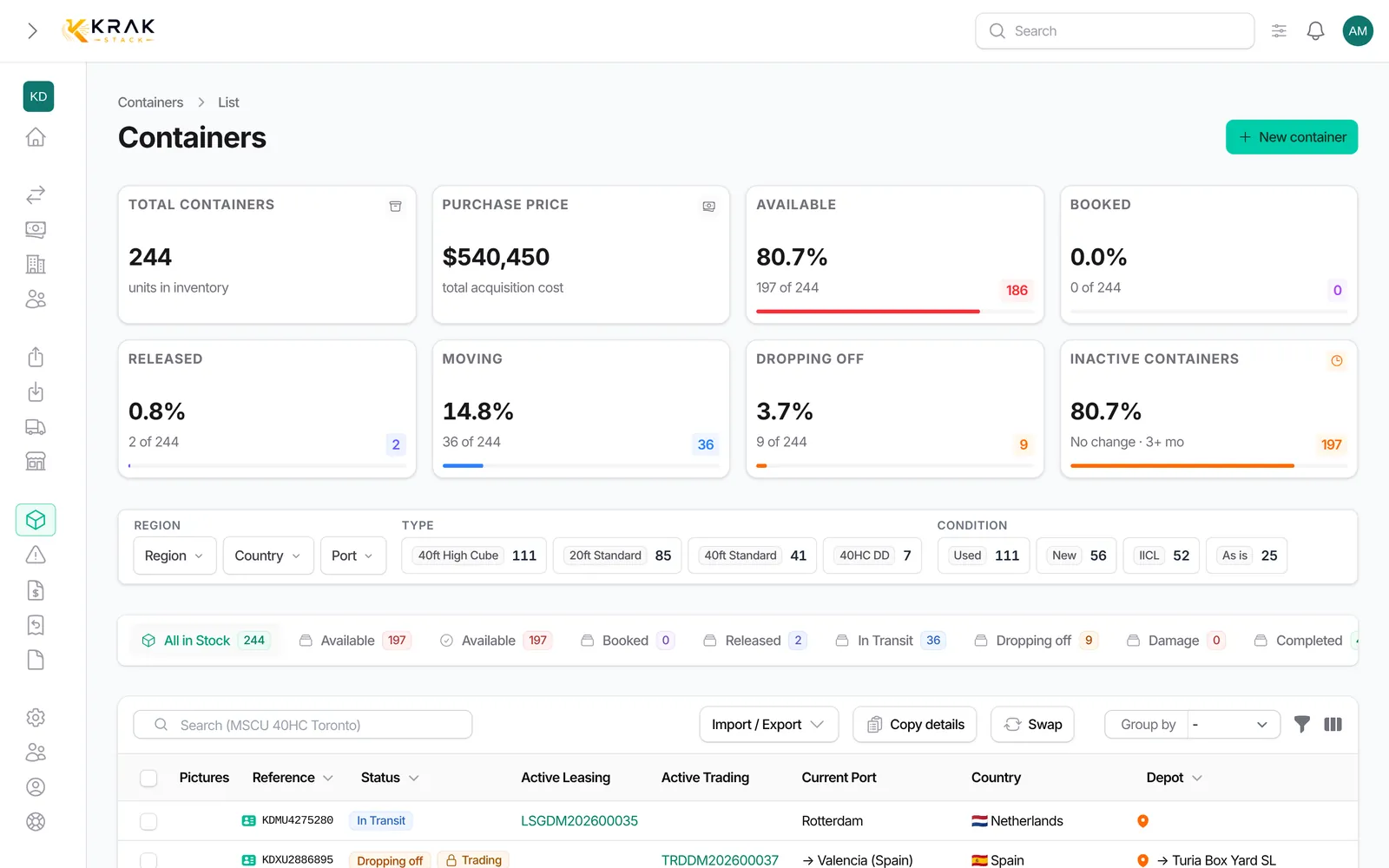
- In Containers, open the Import / Export menu and choose Import.
- Upload step: click Download template if you start from scratch. Fill it in, save it as CSV, drop it and click Validate file.
- Mapping step: Krak Stack links each column of your file to a field (Auto-detected). Change a link with the drop-down or choose Skip this column. The Preview shows the first five rows as they will be read. Click Run pre-validation.
- Review step: the Issues to fix are grouped by type (invalid reference, port not found, unrecognized type, condition or status, unreadable value). In each group, rows carrying the same wrong value are gathered: pick the right value in Replace with, then click Apply to fix all those rows at once. The Edit each row individually link lets you fix rows one by one, and ← Back to bulk fix returns to the grouped view. Each fix is revalidated at once and can be undone with Undo.
- Start the import with Import N valid rows (or Import valid + fixed). Rows that still have issues are skipped.
- Result step: you see the containers Imported, Skipped and Failed. Click Download failed-rows.csv to fix and re-import the failed rows.
Good to know
- CSV only. From Excel: File > Save as > CSV. Comma, semicolon and tab separators are recognized. UTF-8 files and files saved by Excel on Windows are read correctly, accents included.
- Limits: 5,000 rows and 10 MB per file. Above that, split the file.
- Required columns: Reference, Type, Condition and Purchase price.
- Amounts: 1 234,56 or 1,234.56 or 1.234,56, with or without a currency symbol.
- Dates: DD/MM/YYYY or YYYY-MM-DD. When nothing in the file tells day from month (01/02/2026), the date is read the European way.
- Type: the type name or a common code (20DC, 40HC, 45G1…).
- Yes/No columns (Fork Lift Pocket, Lock Box, Easy Open Door): Yes/No, 1/0, true/false. For a new condition, the color and these three columns are required.
- Status: left empty, the container arrives in depot. Statuses set by a deal (booked, released, in transit, dropping off) are refused: import the container in depot, then create the deal.
- Depots, suppliers and buyers are matched by name. An unknown name creates a new company, but only during the real import, never during the review.
- Known container: it is updated, not duplicated. A deleted container is restored. For a container that is not in the depot status, only physical attributes are updated.
- Engaged container (active leasing or trading, open release or return, invoice): the row is skipped and counted as a conflict.
- A reference that appears twice in the file is imported once.
Frequently asked questions
Can I drop an .xlsx file directly?
No. Save your spreadsheet as CSV and upload that file.
My required column is not recognized.
Link it by hand in the Mapping step, or rename the header in your CSV as in the template.
A number has a wrong check digit but it is correct on the box.
In the Review step, tick I confirm this number as typed. The rows are then revalidated.
Some references contain invisible characters.
This is common after a copy-paste. An automatic fix offers to clean them in one click.
Where can I find a past import?
In the Maintenance settings, Import history tab (for authorized users only). Each import shows the containers created, skipped and the conflicts.