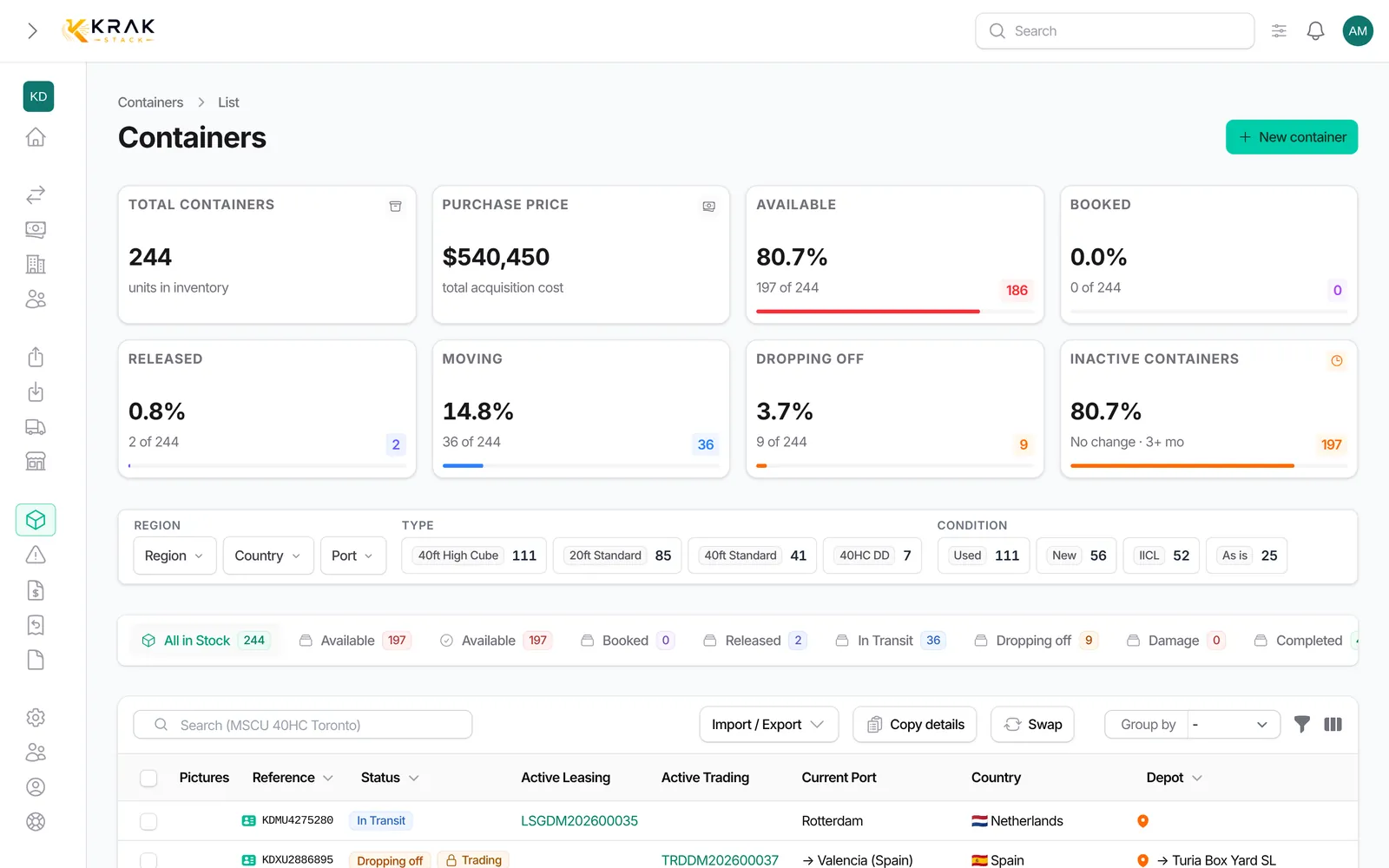
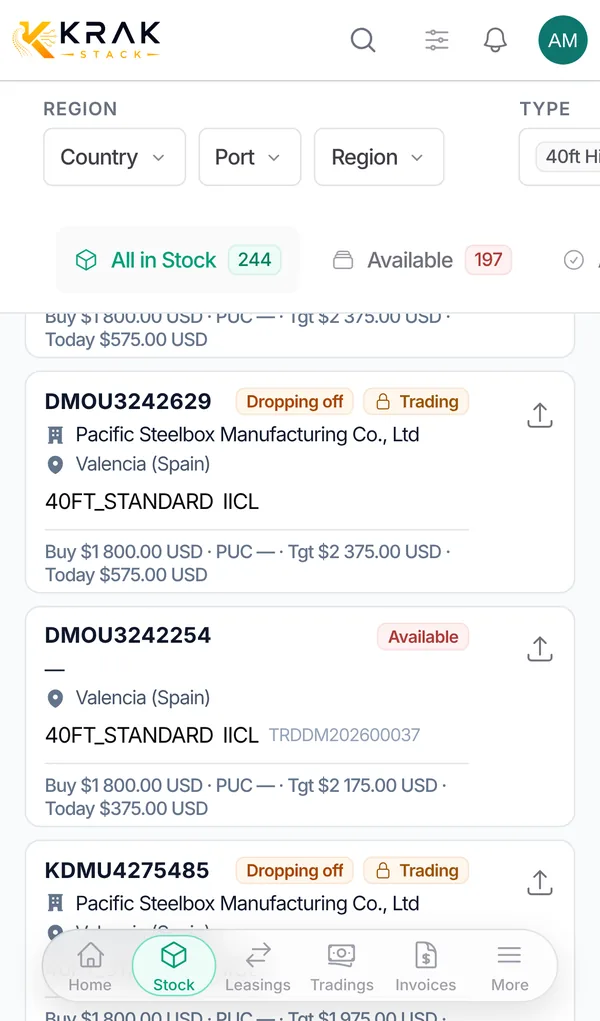
Tick containers in the Containers list to bring up the bulk actions. They apply to the whole selection at once.
Krak StackFig. 1
Steps
- In Containers, filter the list and tick the containers you need (the header box ticks the whole page).
- Choose the action in the selection bar or in the more actions menu: Bulk Edit;; Set market value;; Sell Containers;; Delete selected, Permanently delete selected or Restore selected.
- For Bulk Edit, fill in only the fields to change in Edit Multiple Containers. Fields left empty are not changed.
- Confirm. A notification tells how many containers were updated and which fields.
Good to know
- Bulk edit fields: Status, Depot, Current Port, Type, Condition, Capacity, Color, Material, YOM, Vents, ISO Code, Tare Weight, Maximum Payload, Maximum Gross Weight, Supplier, Purchase Date, Purchase Price, Fork Lift Pocket, Lock Box, Easy Open Door. The collapsed Technical data section adds dimensions, weights, manufacturer, model, CSC and inspections.
- Completed status: only containers sold and out of the depot can be set to it. The others are skipped and listed in a notification.
- Sold container back in stock: tick the confirmation that it really is at the depot and give a reason. Without it, the container is not changed.
- Set market value: enter a Gate buy and/or Pick-up price and the currency. Choose to update the market (same port, type and condition, except locked containers) or to set and lock the price on the chosen containers.
- Sell Containers opens a new trading pre-filled. The containers must be in the same port, and all at the depot (pick-up sale) or all in transit (gate buy).
- Delete selected keeps containers engaged on a deal or listed on an active invoice; they are listed in a notification.
- Permanently delete selected only applies to containers already deleted and with no deal, invoice, claim or depot stay history.
- Each action depends on your permissions. An action missing from your bar is not allowed for your role.
Frequently asked questions
How do I change the depot of 50 containers?
Select them, open Bulk Edit, choose the Depot and confirm.
Does an empty field erase the current value?
No. An empty field means "change nothing".
Why were some containers not changed?
The notification gives the reason: Completed without a sale, restock not confirmed, or status change refused.
Can I change the status of booked or in-transit containers?
The status follows the deals. Fix the deal, release or return instead.
Why is the bulk sale refused?
The containers are not in the same port, or the selection mixes containers at the depot and containers in transit.
Does the selection cover every page?
The header box ticks the page shown. Filter first to target the right batch.