The Containers list is your everyday tool to find a container or a batch. Here is how to set it up your way.
Krak StackFig. 1
Steps
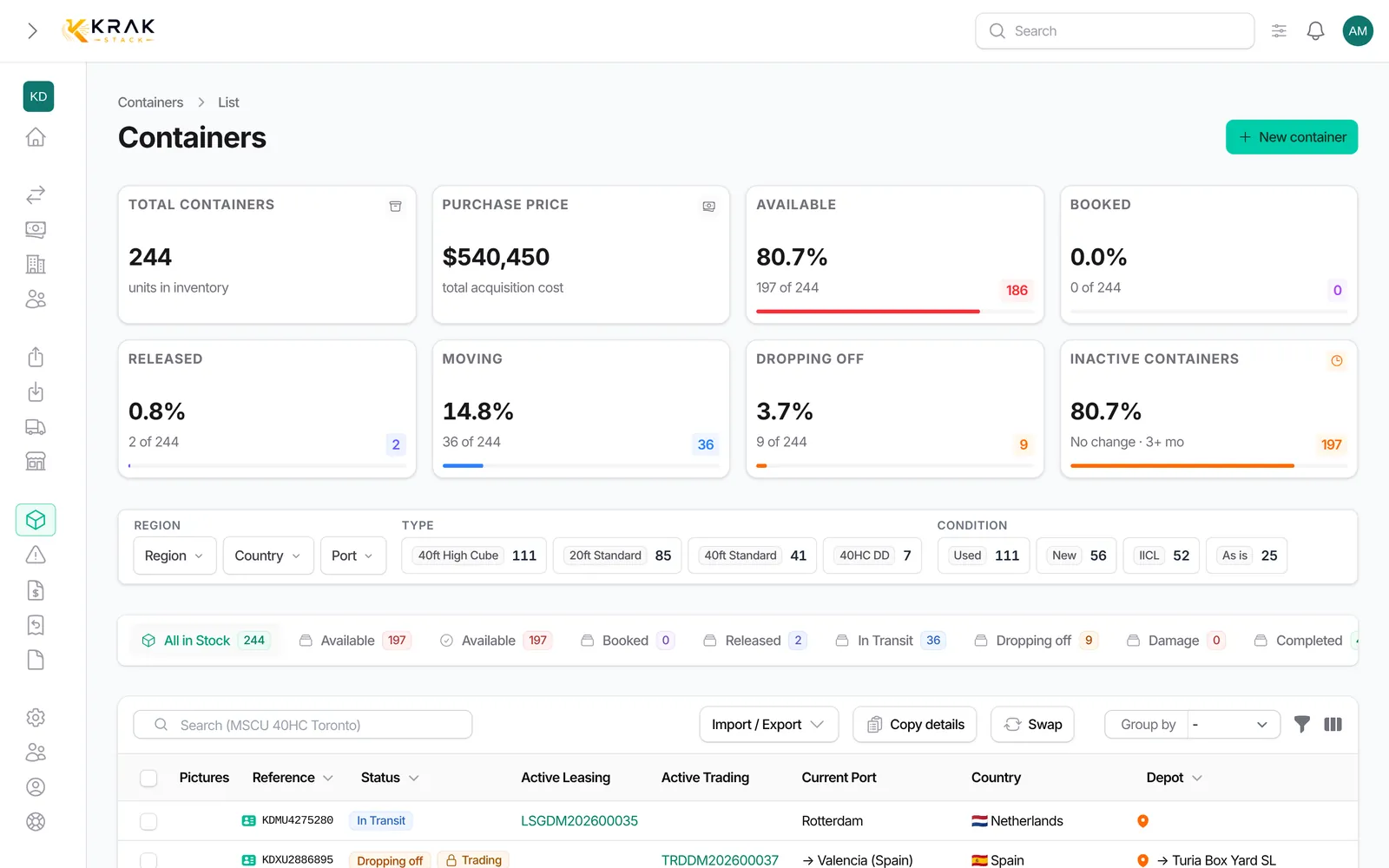
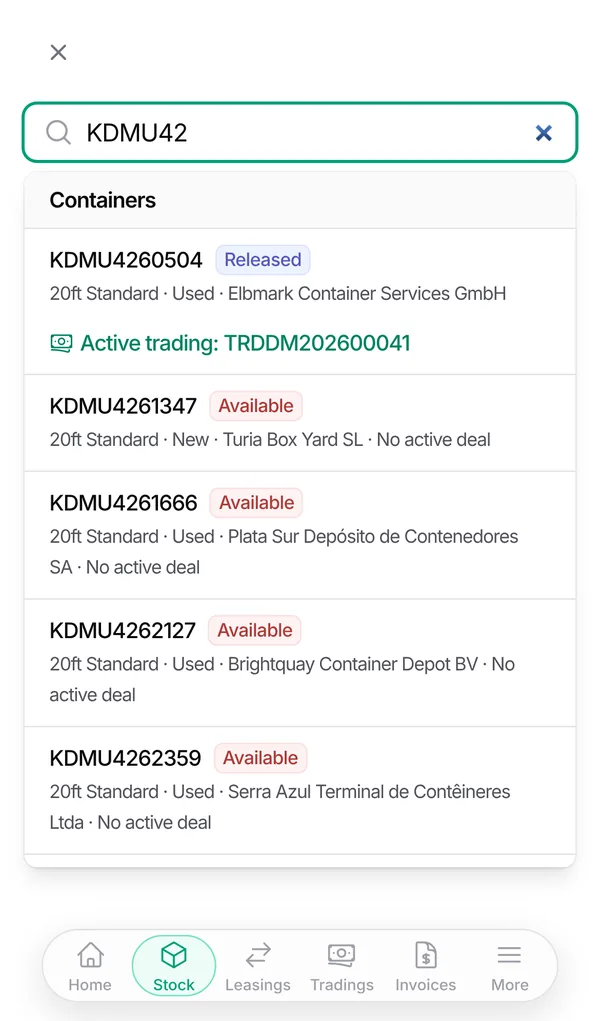
- Search: type one or more words in the search bar, for example "CSQU 40HC Rotterdam". Each word must match.
- Pick a tab: All in Stock, Available or a status (Booked, Released, In Transit…). The badge gives the number of containers.
- Filter: open the filters button. At the top, the drill-down by Type, Condition, Region, Country and Port; below, the detailed filters.
- Group: group the rows by Status, Depot, Type, Condition, Color, Capacity or YOM.
- Columns: open the column manager to show, hide or reorder columns.
- Select: tick rows to see their totals and run a bulk action.
Good to know
- What the search looks at: reference, ISO code, status, depot, type, condition, color, capacity, supplier, buyer, leasing or trading reference, port and country. A word that looks like a container number only searches references.
- Available filters: Keywords (several pieces of reference), Status, Port, Region, Country, Depot, Type, Condition, YOM, Color, the features (Fork Lift Pocket, Lock Box, Easy Open Door), creation, purchase, sale, Depot entry and Depot exit periods, Inactive since (1 to 12 months), price sources and deleted containers.
- Region, country, port: picking a region limits the countries and ports offered to that region. The port filter also keeps containers whose destination is that port.
- The indicators above the list (total, purchase price, available, booked, released, moving, dropping off, inactive) follow your filters. Click one to open the matching tab.
- Your filters stay active during your session. Your columns and their order are saved for your account.
- Density: in Quick settings, choose the Table density: Comfortable, Compact or Tight.
- Selection totals: when you tick rows, the bar shows the Purchase, Sale and Market totals, per currency.
- Copy details copies the filtered list (up to 500 containers) with reference, type, condition, status and depot, ready to paste into an email.
- A list shows at most 50 rows per page. For more, use the export.
Frequently asked questions
How do I quickly find a specific container?
Type its number in the list search, or in the global search at the top of the screen.
How do I see the free containers of a depot?
Open the Available tab, then filter on the Depot.
How do I find containers that no longer move?
Use the Inactive since filter or the inactive containers indicator.
Why does a tab badge show "120 → 35"?
A filter or a search is active: 120 without it, 35 with it.
How do I clear all filters?
Use Clear all in the drill-down, or reset the filters panel.
Can I save a custom view?
There are no named views. Your columns are remembered and your filters stay active during the session.
How do I find a deleted container?
Turn on the deleted records filter, select it, then Restore selected.