Every main list in Krak Stack can be exported for a spreadsheet, a report or a partner. The export follows exactly what you see on screen.
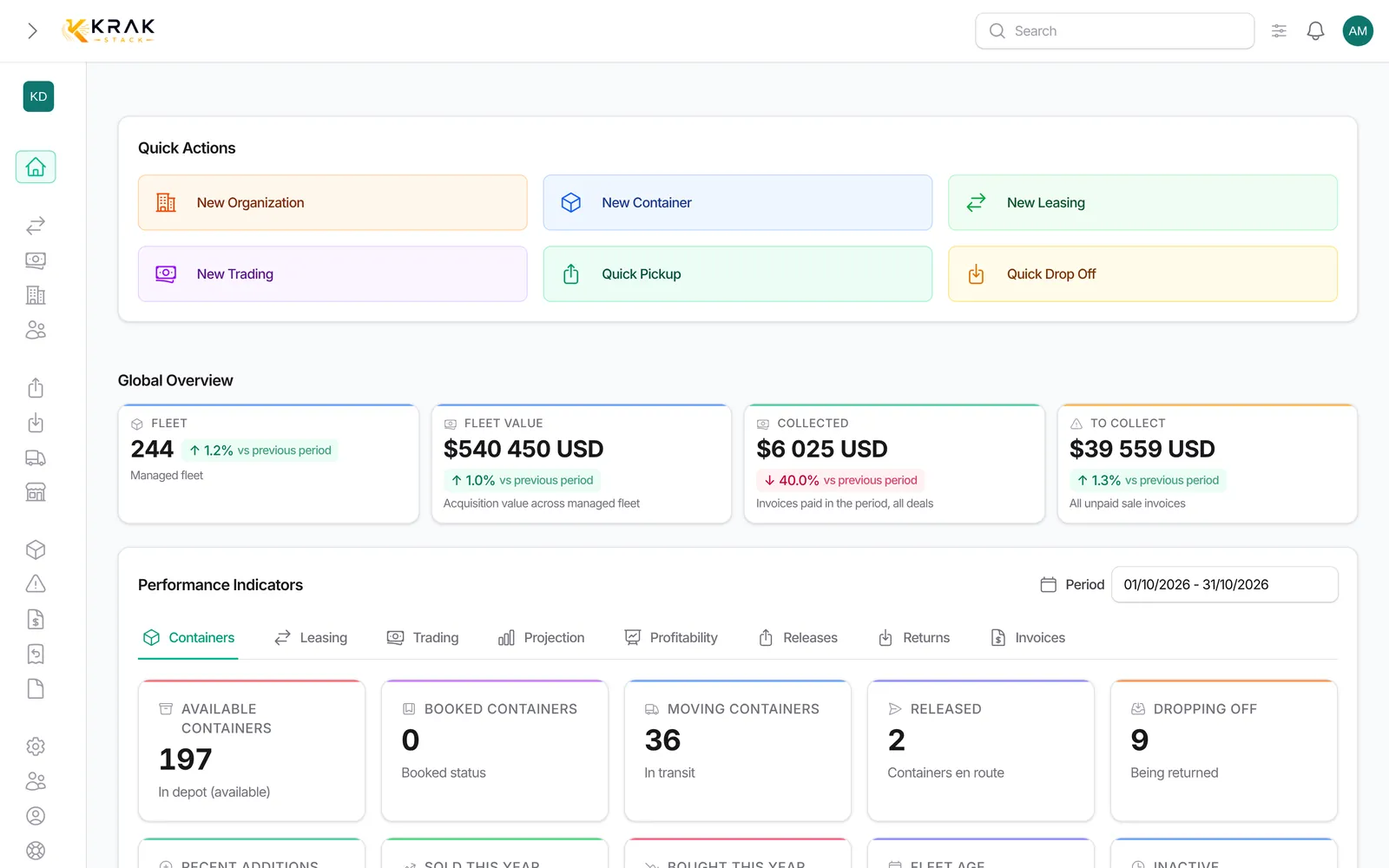
Krak StackFig. 1
Steps
- Open the list to export and apply your filters, tab and search.
- To export only some rows, tick them. Otherwise the whole filtered view is exported.
- Start the export: Containers, Companies and Depots: Import / Export menu, then Export;; Leasing, Trading, Finance (invoices), Releases and Returns: the list's Export button.
- In the window, read the scope ("Exporting N rows…") and tick the columns you want. Each group has its own Select all / Deselect all.
- For containers, choose Export CSV or Export XLSX. For the other lists, click Export: the file is prepared in both formats.
- A notification arrives in the bell when the file is ready: click Download .csv or Download .xlsx.
Good to know
- Scope: the selection if rows are ticked, otherwise the whole filtered view, all pages included.
- Container columns: grouped into Identification, Type & specifications, Location, Purchase and Sale / client. Other lists group their columns by theme (Identification, Dates, Client, Amounts, Deal…).
- Leasings and tradings: tick a Container detail column to get one row per container instead of one row per deal.
- Copy: the Copy button of the export window puts the chosen columns on the clipboard, ready to paste into a spreadsheet or an email. Above 200 rows, use the file.
- Other exports: Export tariffs in Depots, the Container activity tab of a depot, the containers of a leasing, trading or company from their tab, and the dashboard Profitability tab (CSV or Excel).
- Each export depends on your permissions: a missing button is not allowed for your role.
Frequently asked questions
Where is my file?
In the notification bell, with the download link. The export is prepared in the background; you can keep working.
The export has more rows than the screen. Why?
The list shows 50 rows per page; the export takes every row of the filtered view.
How do I export only a few containers?
Tick them in the list before opening the export.
CSV or XLSX?
XLSX opens directly in Excel with accents and columns in place. CSV suits imports into other software.
Can I re-import a container export?
Yes, as long as you keep the import's required columns (Reference, Type, Condition, Purchase price) and save the file as CSV.