The Dashboard is Krak Stack's home page. It sums up your fleet, your deals and your collections, and most figures open the matching list.
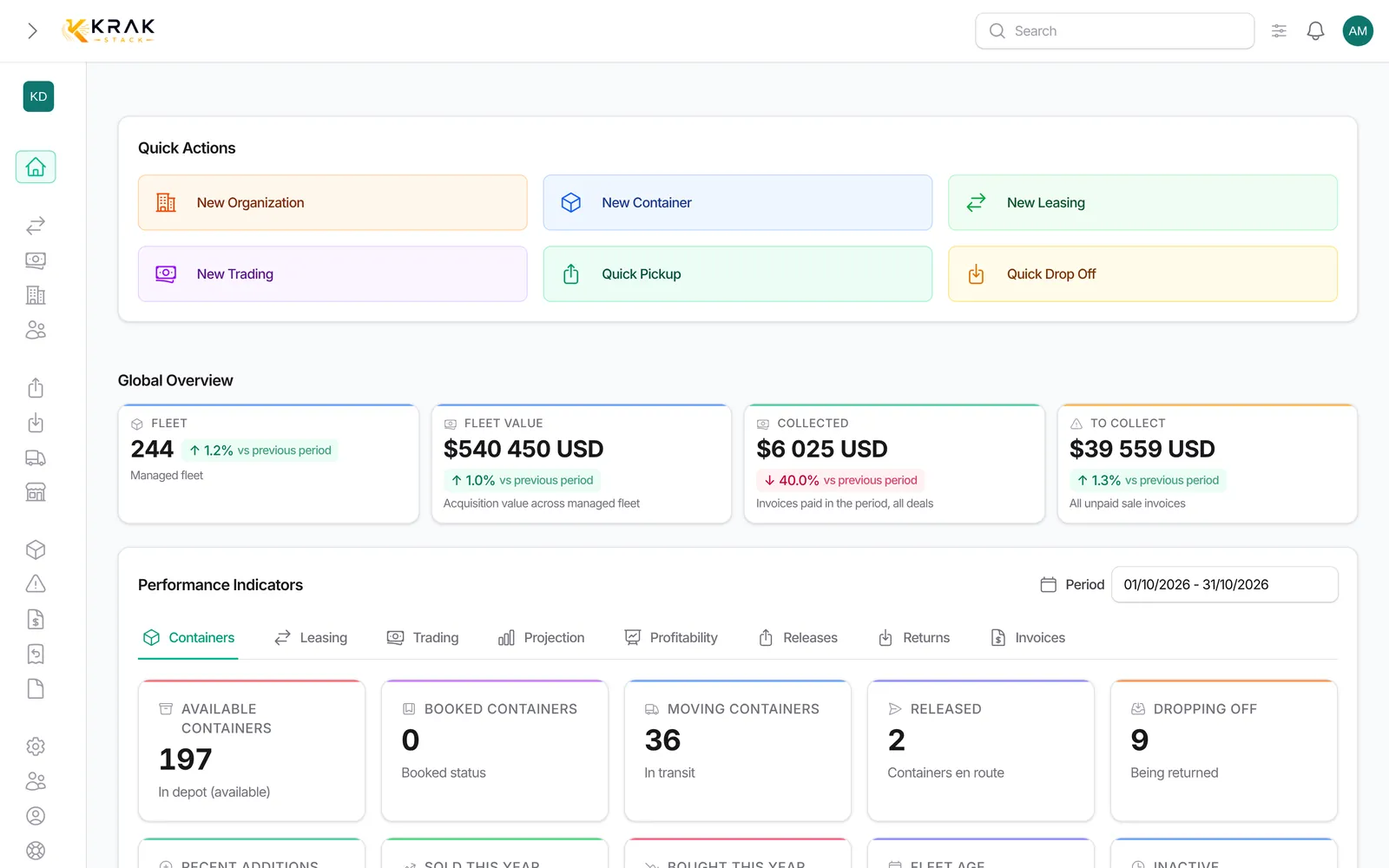
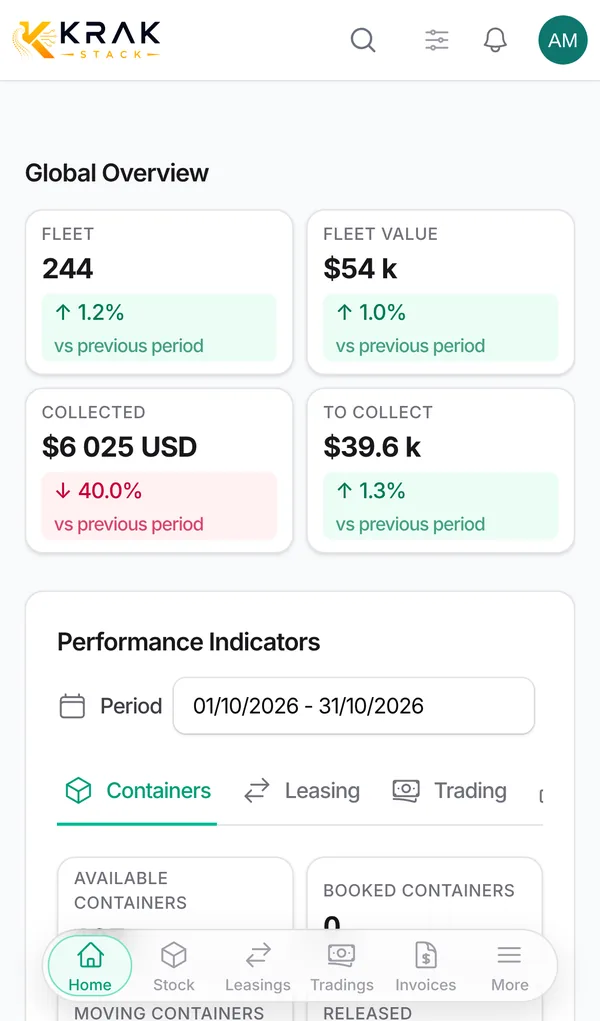
Steps
- Open Dashboard in the menu.
- At the top, Quick Actions offers the usual creations, Quick Pickup and Quick Drop Off.
- Global Overview shows four key figures.
- In Performance Indicators, choose the Period then a tab: Actions to do, Containers, Leasing, Trading, Projection, Profitability, Releases, Returns, Invoices.
- Click an indicator to open the filtered list behind it.
Good to know
Global Overview
- Fleet: the managed fleet (containers that left the fleet excluded).
- Fleet value: acquisition value of the managed fleet. A container without an exchange rate is excluded and flagged.
- Collected: invoices paid in the period, all deals, compared with the previous period.
- To collect: all unpaid sale invoices, whatever the period.
Containers tab: Available Containers (at the depot and free), Booked Containers, Moving Containers, Released, Dropping off, Recent additions (30 days), Sold this year, Bought this year, Fleet age (average YOM), Inactive (no status or port change for 3 months). The Fleet distribution reads by status, type, region, country, condition or port, as Count or Value. Below the tab, Top clients and Revenue Evolution (breakdown by business line, invoice type, collected vs receivable or region).
Leasing tab: the To handle queue (late returns, overdue invoices, per diems and pickup charges to invoice, free days ending soon, leasings without a release), then Leasing revenue collected, Fleet utilization (on-hire / managed fleet), Overdue containers, End of hire within 90 days, average durations and the top five clients by revenue and by overdue exposure.
Trading tab: the To handle queue (deals with no movement, overdue sales invoices, late drop-off, deals to invoice, releases without pickup), then Gross margin, Average margin per container, Revenue collected and Sold / bought.
Releases and Returns tabs: number in the period, pending, completed, and the rate of pickups or returns beyond free storage.
Invoices tab: invoices in the period, paid, pending, overdue, receivables by age (0-30 to 90+ days), DSO and payment lateness.
Projection tab: monthly projected margin over 12 months, top 10 deals and breakdown by port, type or condition. Profitability tab: margin of the deals created in the period, with the points to watch and a CSV or Excel export.
- The period defaults to the current month and is remembered during your session.
- Actions to do only shows if alerts are turned on for your workspace.
- Each block depends on your permissions; amounts are kept for roles that have access to them.
Frequently asked questions
Why does "To collect" not change with the period?
It covers all unpaid sale invoices, whatever their date.
How do I see the whole year?
Pick 1 January to 31 December in Period. When a tab is empty, a View year link does it for you.
Why does Fleet value flag excluded containers?
Their price is in a currency with no exchange rate available.
What does "Inactive" mean?
Containers whose status and port have not changed for at least 3 months.
An indicator shows a figure I do not understand.
Click it: the list that opens shows exactly the items counted.
I do not see the Profitability tab.
It is kept for roles with access to deal amounts.
Why are some blocks missing for my colleague?
Each block depends on the role's permissions. By default, the Operation role sees containers, releases, returns and alerts, but not amounts.
Does the dashboard work on a phone?
Yes. On a small screen, the overview comes first, quick actions fold away and the fleet charts become a compact bar.
What does Quick Pickup do?
It directly opens the recording of a pickup, without going through the deal page. Quick Drop Off does the same for a return to the depot. These shortcuts depend on your permissions.
Why does the Fleet value at the top differ from the Distribution in Value mode?
Fleet value converts each price into your currency. The Distribution adds up prices as they are entered, to compare shares.