Krak Stack is online management software for companies that lease, buy and sell shipping containers. It follows each container from the day it enters your fleet until it is sold, and produces the documents and invoices that go with it.
Steps
- Sign in to your workspace with the email address that received your invitation.
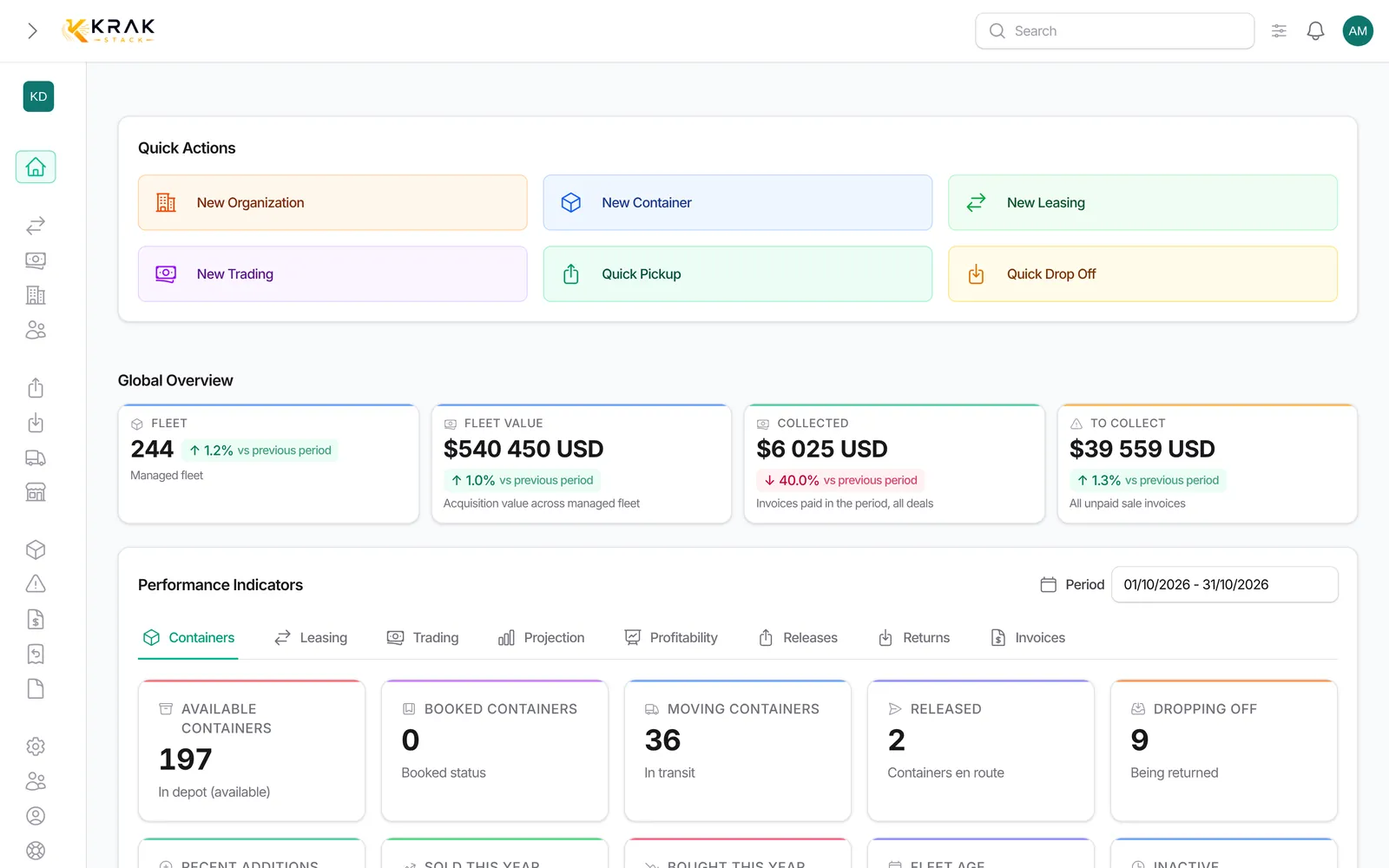
- Open the Dashboard to see your indicators and the First steps list (for administrators).
- Browse the left menu: it groups every module described below.
Good to know
- Containers: your fleet, with status, depot, condition, history, photos and value. Import from a CSV file.
- Companies and Contacts: customers, suppliers and depots, with their contacts. Depots also have their own Depots entry.
- Leasing: lease contracts, pickups, drop-offs, free days, per diems and pickup charges.
- Trading: container purchases and sales, by pickup or gate buy, with margin tracking.
- Releases and Returns: the documents that allow a container to leave a depot or come back, sent to the customer and the depot.
- Finance: sales and purchase invoices, credit notes, proformas, email sending, payment reminders and Bank reconciliation.
- Bank connection: read-only access to your accounts to match payments with your invoices, or import of a CSV statement.
- Dashboard: indicators by tab (containers, leasing, trading, releases, returns, invoices, profitability) and actions to do.
- Claims, Transports and Documents: damages and repairs, transport orders, filed documents.
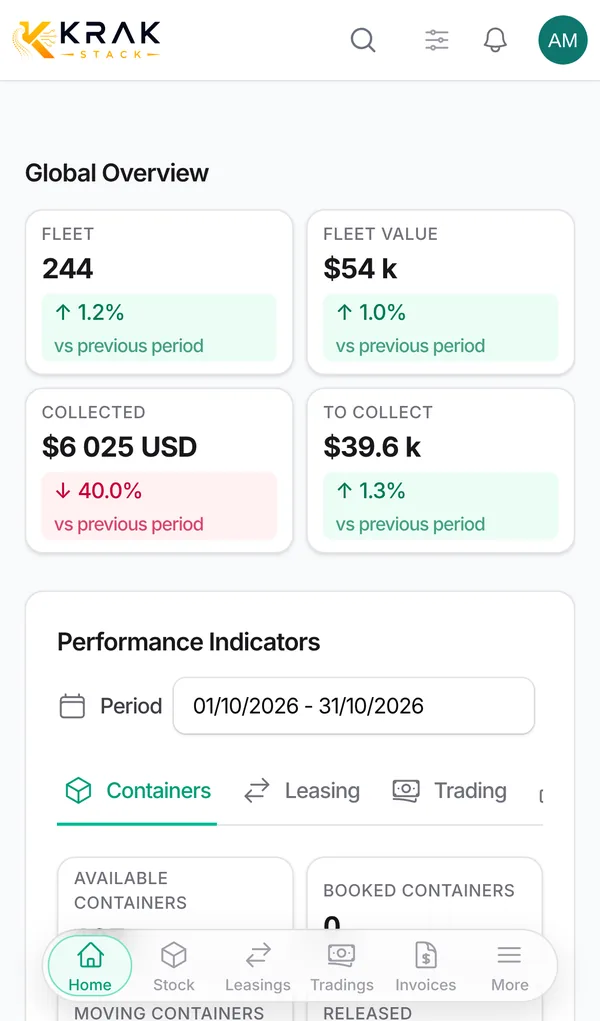
- Mobile: Krak Stack can be installed on a phone like an app.
- The interface is available in English and French.
Frequently asked questions
Do I need to install software?
No. Krak Stack runs in your web browser. On a phone, you can add it to the home screen.
Is Krak Stack suitable if I only do trading?
Yes. The Trading plan covers buying and selling. The Trading + Leasing plan adds leasing.
Is my data separated from other customers?
Yes. Each company has its own workspace. A user only sees the workspaces they were invited to.
Can I work for several companies with one account?
Yes, if you are invited to several workspaces. Switch between them with the workspace selector at the top of the menu.
Who sees amounts and margins?
It depends on each user's role. The administrator sets these rights in Roles and permissions.
Where should I start?
Follow the first steps article: it gives the recommended order to set up your account.