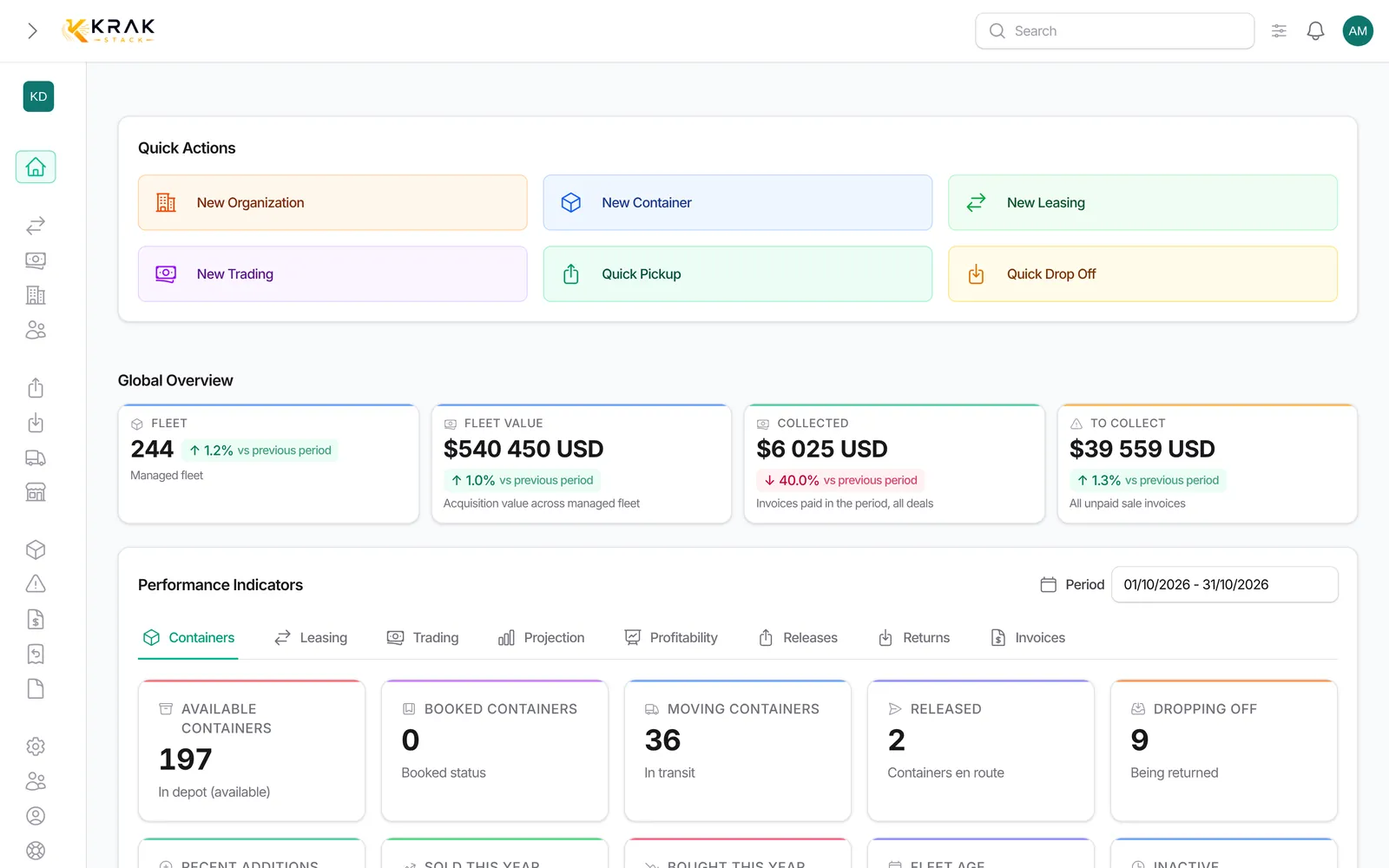
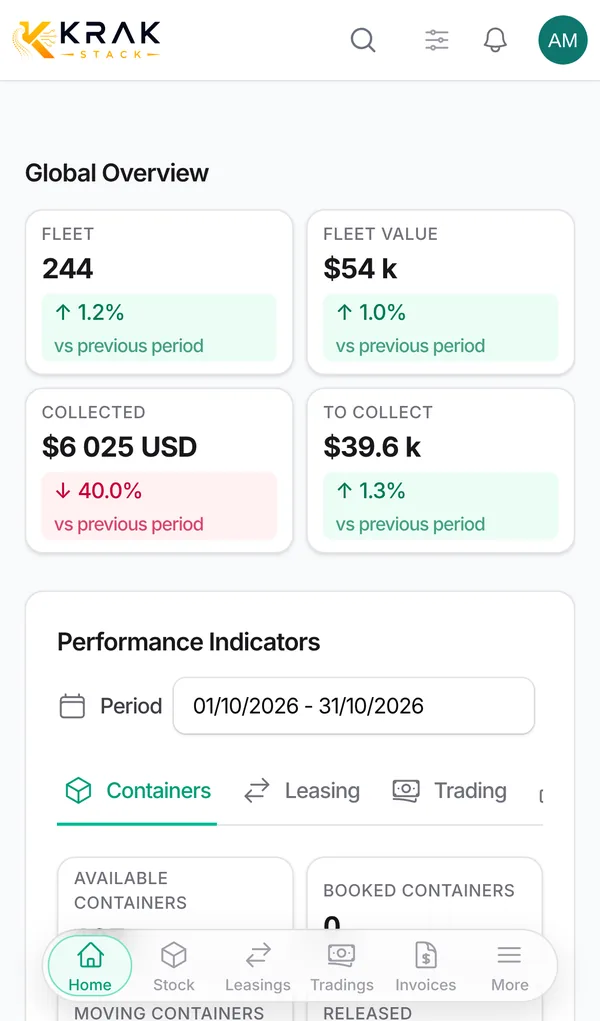
This article presents the parts of the screen you will use every day.
Krak StackFig. 1
Steps
- The left menu groups modules by theme: Business (Leasing, Trading, Companies, Contacts), Operations (Releases, Returns, Transports, Depots), Management (Containers, Claims, Finance, Documents) and Administration (Users, Settings, Help center, Support). It can be collapsed on desktop.
- Global search, at the top of the screen: type a container number, a deal reference, an invoice number or a company name.
- The notifications bell: ready exports, finished imports, support replies and alerts arrive here. It refreshes by itself.
- Quick settings (settings icon next to the search): choose the Light, Dark or System theme and the Table density (Comfortable, Compact, Tight).
- The user menu (your avatar at the top right): Settings, Users, My account and Support, depending on your rights.
- The Help center: these articles, the First steps list and the guided tour.
Good to know
- Lists have status tabs at the top, a search, a filters button and a column manager.
- Your column choices, their order, sorting and rows per page are saved for your account. They follow you to another browser.
- A list shows at most 50 rows per page.
- Tick rows to see the total of the selected amounts and run a bulk action.
- You only see the menus your role allows.
Frequently asked questions
How do I switch company when I have access to several workspaces?
Use the workspace selector at the top of the left menu.
How do I get my original columns back?
Open the list's column manager and reset it.
Where do I find a ready export?
In the notifications bell: the message contains the download link.
How do I switch to dark mode?
Open Quick settings and choose Dark. System follows your computer's setting.
Are filters kept?
Columns, sorting and pagination are kept for your account. To remove all active filters, use the reset in the filters panel.