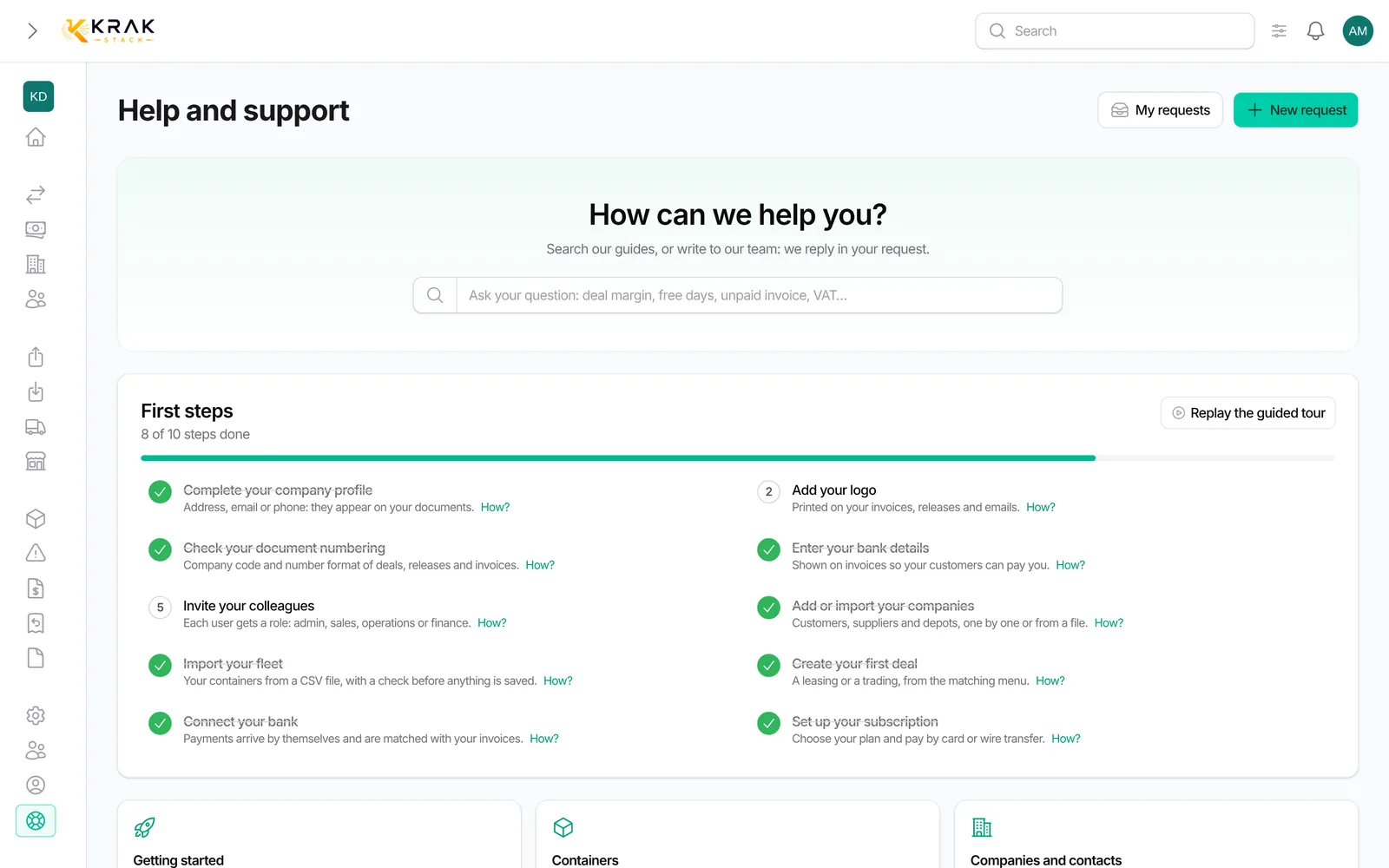
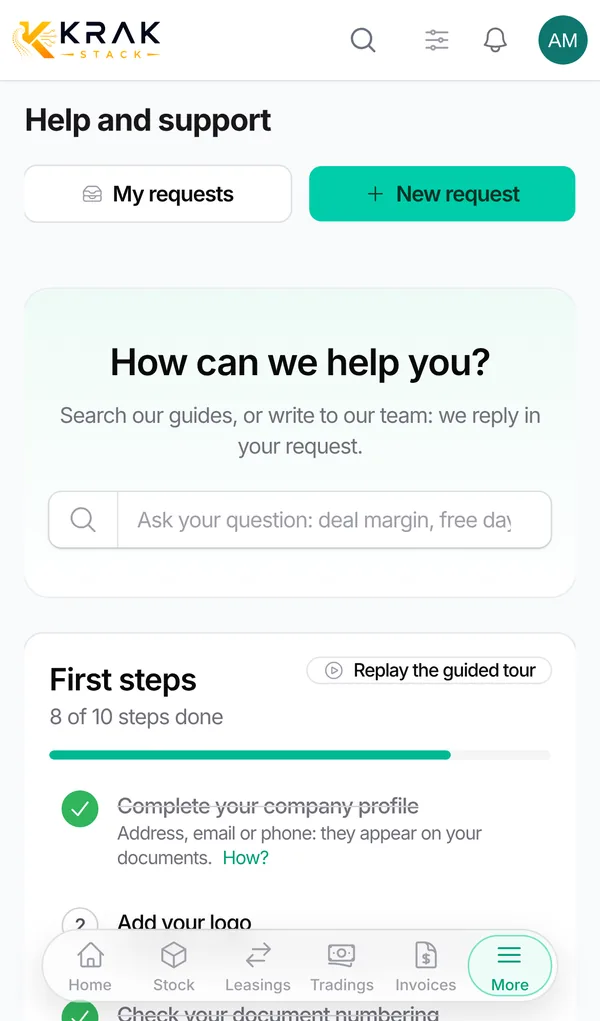
These steps prepare your workspace before your first deal. The Dashboard shows a First steps card that ticks each step as soon as it is really done.
Krak StackFig. 1
Steps
- Company profile: in Settings > Company, General tab, fill in the address, email or phone, VAT number and timezone.
- Logo: Workspace tab, field Logo on your documents and emails. It is printed on your invoices, releases and emails.
- Numbering: Settings > Documents & emails > Numbering. Choose the Company document code (2 to 4 uppercase letters), the year and the counter length.
- Bank details: Settings > Finance, Banking Information tab. They appear on your invoices.
- Colleagues: Users > New user, then choose a role (Administrator, Sales, Operation, Finance).
- Companies and depots: Companies menu, create them one by one or import a file. Depots are companies of the depot type.
- Fleet: Containers menu, Import / Export > Import containers. The wizard checks the file before anything is saved.
- First deal: create a lease from Leasing or a trade from Trading.
- Bank: Settings > Finance, Bank connection tab, to connect your bank or choose CSV import.
- Subscription: Settings > Billing, to choose your plan and pay by card or wire transfer.
Good to know
- The First steps card is meant for administrators. Each step links to the right screen and has a How? link to the help article.
- Steps tick themselves from your data: you cannot tick them by hand.
- The Hide button removes the card from the dashboard for you only. The list stays available in the Help center.
- The Guided tour starts by itself the first time you open a workspace. To see it again, open the Help center and click Replay the guided tour.
Frequently asked questions
Must I follow this order exactly?
No, but it avoids rework. For example, numbering should be set before you issue your first invoices.
I come from another tool. Can I keep my numbers?
Yes. In Numbering, the Continue an existing numbering section lets you enter the next number of each document.
Why is "Invite your colleagues" not ticked?
It is ticked as soon as the workspace has at least two users.
I do not see the First steps card.
It only appears for users who can access settings. If you hid it, it is still visible in the Help center.
Do I have to connect my bank to use Krak Stack?
No. The bank connection makes payment matching easier, but you can also import a CSV statement or record payments by hand.
What if I do not import my fleet?
You can create containers one by one. Import is faster for an existing fleet.