Krak Stack can email your clients when a sale invoice stays unpaid after its due date. Reminders follow three levels, with delays you choose.
Krak StackFig. 1
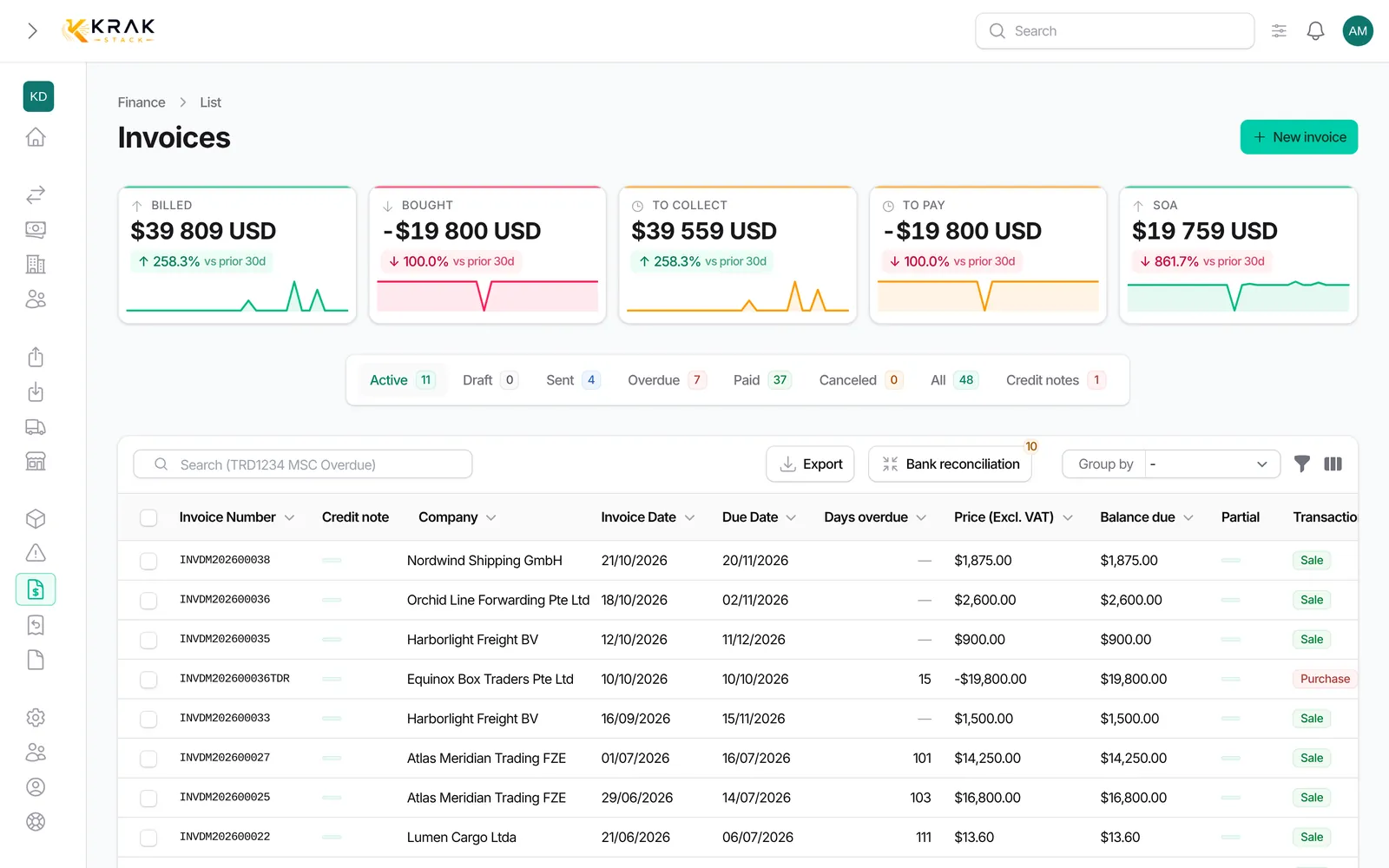
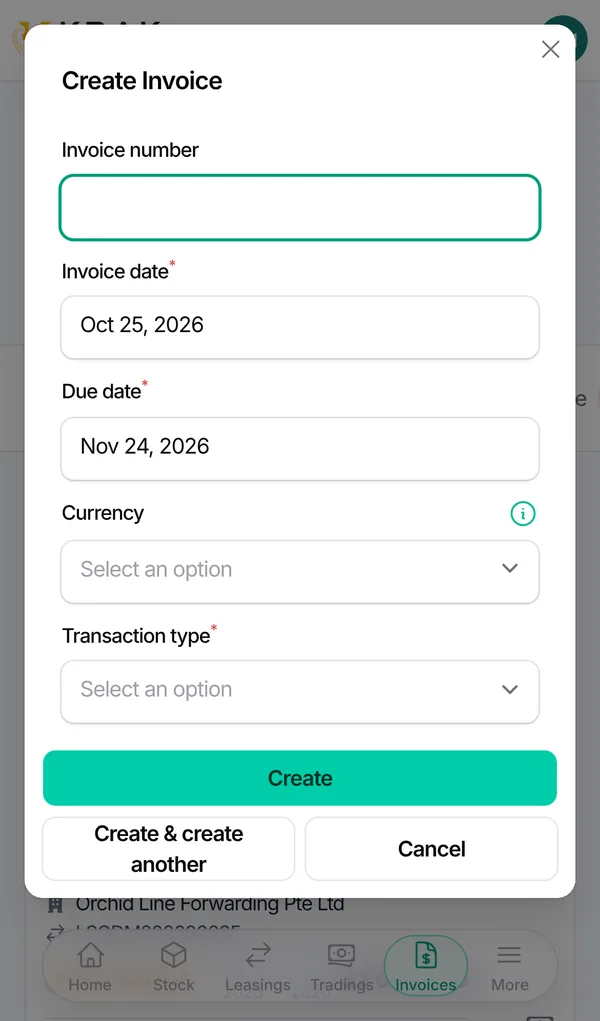
Steps
- Open Settings > Finance, Payment reminders tab.
- Tick Enable payment reminders.
- Set the delays: Level 1 delay: days after the due date;; Level 2 delay: days after the level 1 reminder;; Level 3 delay: days after the level 2 reminder;; Level 3 repeat interval: days between two level 3 reminders;; Maximum reminders: leave empty for no limit.
- Save.
- For a specific client, open its record in Companies and switch on Custom payment reminders: a delay left empty uses the workspace value.
- For one invoice, open it with Edit, Payment reminders section: off, the invoice is never reminded; on, it is reminded with the delays entered, or the company and workspace values if left empty.
Good to know
- The invoice setting wins over the company setting, which wins over the workspace setting.
- Only sale invoices that are Sent or Overdue, with a due date and a balance due, are reminded. Proformas never are.
- Reminders go out every morning. An invoice is never reminded twice on the same day, and a client gets at most one email per day.
- A client with several invoices to remind gets one email listing them all (number, due date, days overdue, amount) with a total per currency.
- Invoice PDFs are attached for up to 10 invoices; above that, the email says they are available on request.
- Reminders go to the contacts with the Invoice role in the billed company. Without a contact, the invoice is not reminded.
- The text of each level comes from the email templates "Invoice payment reminder — Level 1", "Level 2" and "Level 3".
- When the maximum number of reminders is reached, the invoice is flagged Manual follow-up required: someone must chase the client directly. The flag goes away when the invoice is paid or canceled.
Frequently asked questions
How do I find invoices to chase by hand?
In Finance, use the Manual follow-up required filter or show the column of the same name.
A client gets no reminder: why?
Check that reminders are on (workspace, company or invoice), that the invoice is sent or overdue with a balance due, and that the company has a contact with the Invoice role.
How do I stop reminders for one invoice?
Edit the invoice and switch off Payment reminders enabled.
Do reminders stop when the client pays?
Yes. A paid, canceled or fully settled invoice is no longer reminded.
Does a partial payment stop reminders?
No, the invoice keeps being reminded while an amount is due; the email mentions what was already received.
Can I change the reminder text?
Yes, by editing the email templates of the three levels.