A proforma is an offer sent to the client before the real invoice. It has no accounting effect until the client accepts it and you validate it.
Krak StackFig. 1
Steps
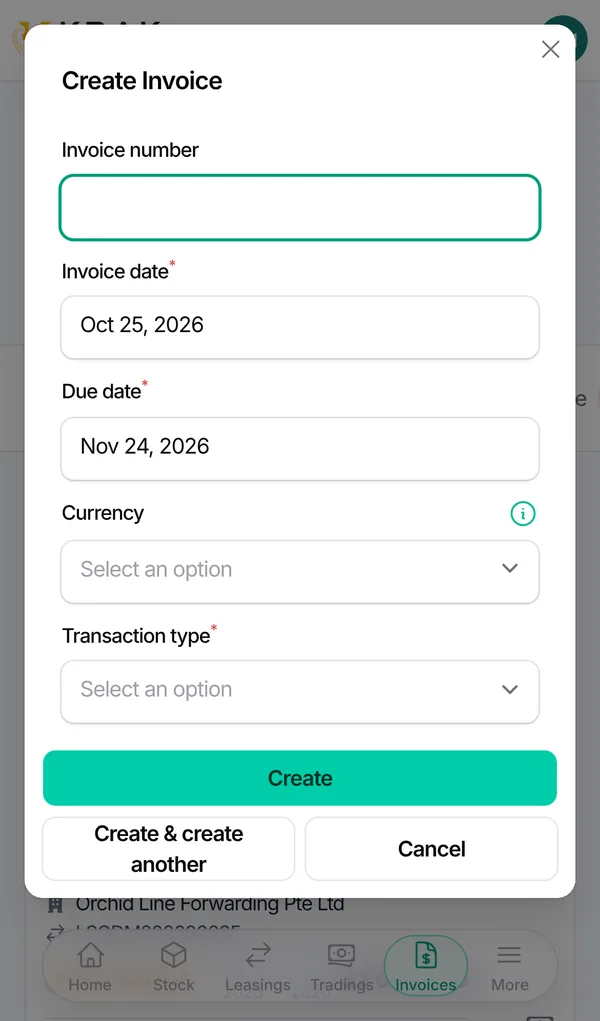
- Open the trading deal, Finance tab, and click Create trading invoice.
- In the window, switch on Pro-forma, next to the notes. The submit button becomes Create pro-forma.
- Pick the containers and prices, then create: the proforma immediately receives its number (PF prefix).
- Send it to the client with Send by Email or Download PDF. The document is titled as a proforma invoice.
- When the client accepts, click Validate pro-forma: it becomes a draft invoice.
- If the client declines, click Reject pro-forma.
Good to know
- A proforma is created from a sale trading deal; the option is not offered on a buy-only trading deal.
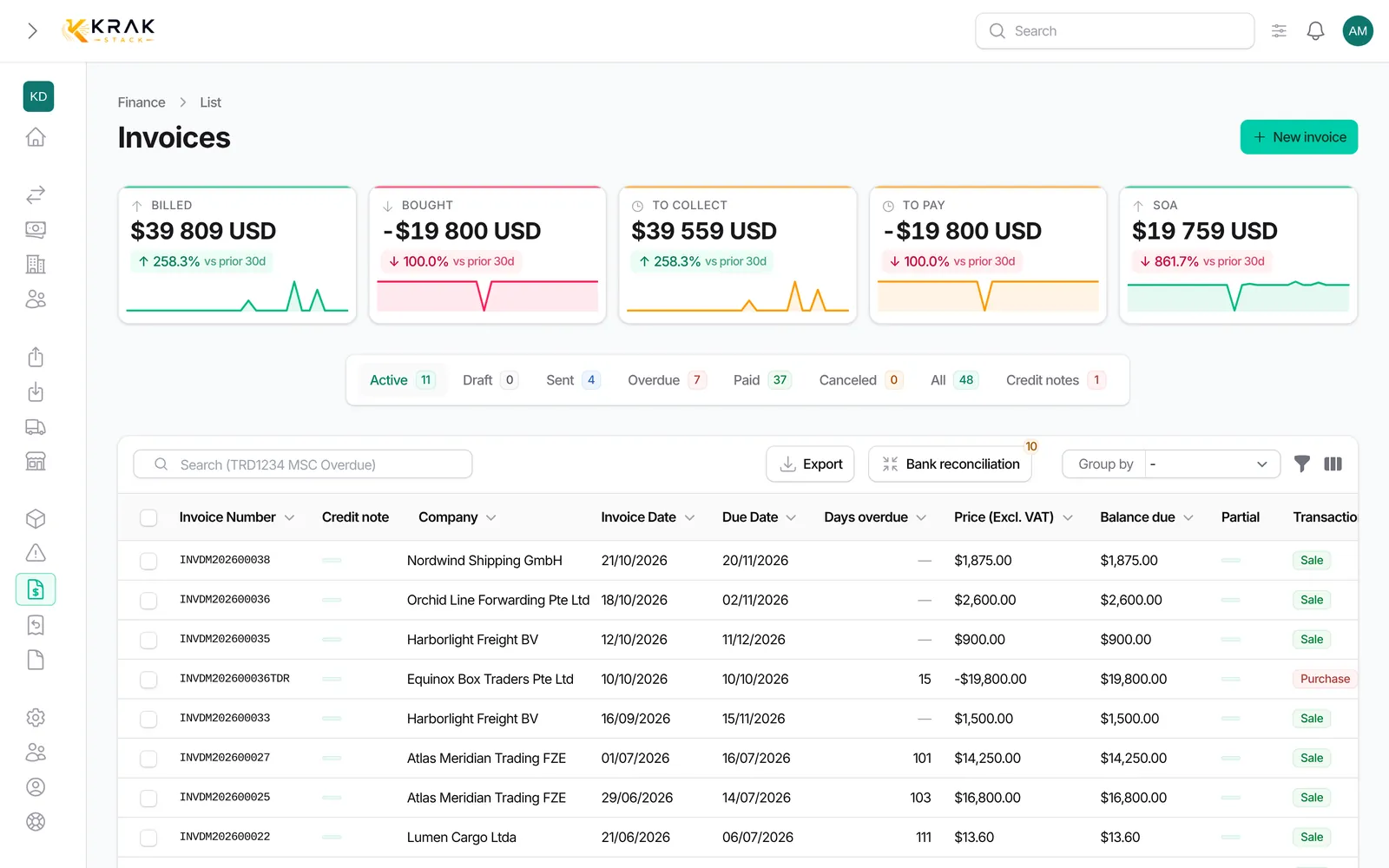
- Proformas appear in the trading deal's Finance tab with the Pro-forma badge; they are not listed in the main Finance list.
- A proforma does not change status, receives no payment or credit note, and is not reminded.
- On validation, the PF number is kept and the invoice receives its invoice number when issued, like any invoice.
- A rejected proforma is kept for traceability, its number stays reserved and it can no longer be validated. It shows the Pro-forma rejected badge.
- Validating a proforma requires a specific permission.
Frequently asked questions
Why is my proforma not in Finance?
The Finance list only shows invoices. Find the proforma in the trading deal's Finance tab. Once validated, it appears in Finance.
Does sending the proforma make it Sent?
No. It stays an offer; only the invoice created on validation follows the usual statuses.
Can I record a down payment on a proforma?
No. Validate it into an invoice first, then record the payment on the issued invoice.
Which number does the client see on the PDF?
The proforma number (PF prefix). The invoice number only exists after validation and issue.
Can a rejected proforma be reactivated?
No. Create a new proforma if the client comes back.
Where do I set the PF number format?
In Settings > Documents & emails > Numbering. See Numbering.