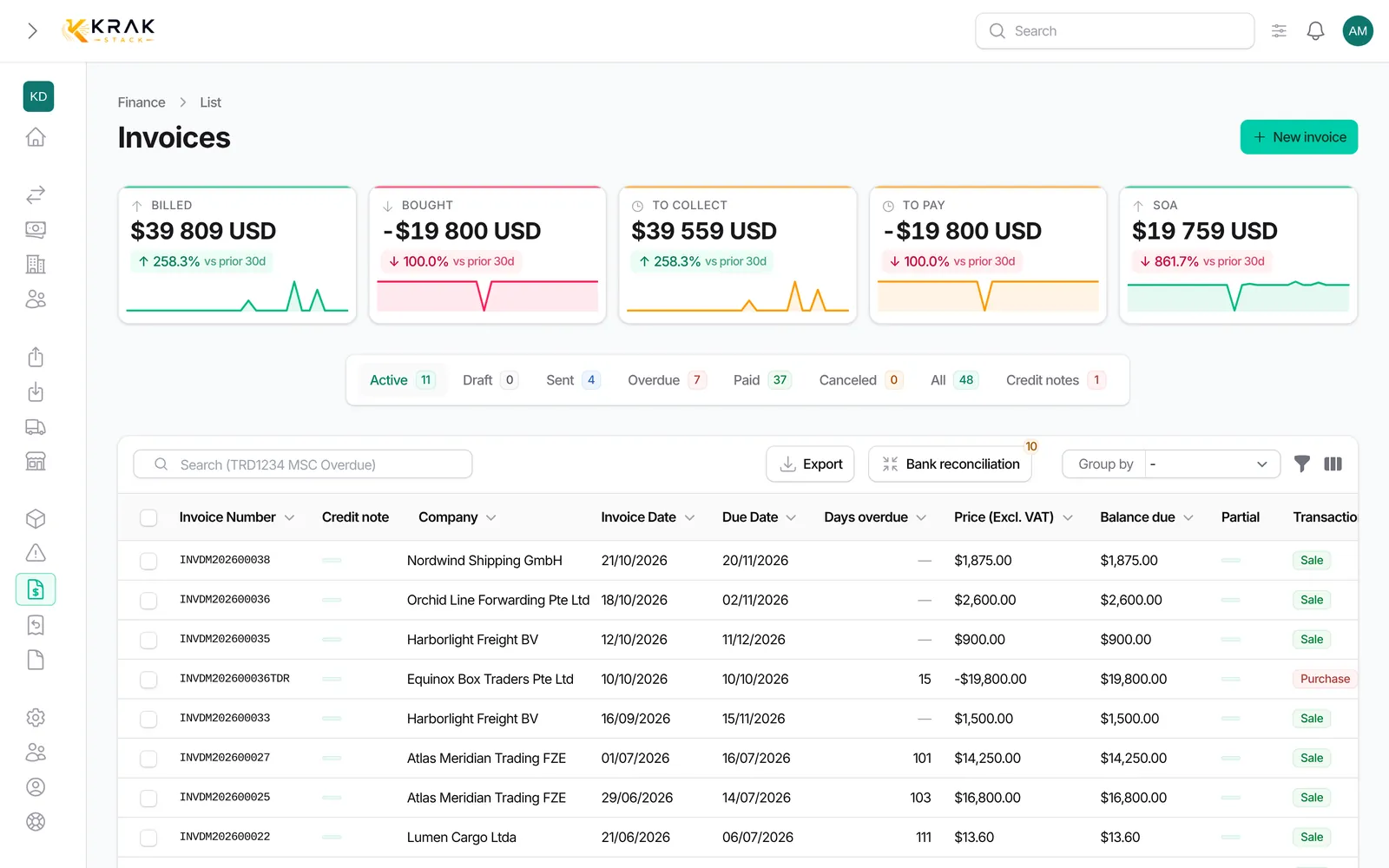
You can create an invoice from the related deal (Krak Stack then reuses the client, currency and containers) or by hand from the Finance menu. Every new invoice starts as a draft.
Krak StackFig. 1
Steps
- From a deal: open the lease or trading deal, Finance tab, then pick the matching button: lease: Create pickup charge invoice, Create storage invoice, Create Per Diems Invoice, Create damage invoice;; trading: Create trading invoice, Create storage invoice, Create damage invoice;; for anything else: Create invoice (free form already linked to the deal).
- By hand: open Finance and click New invoice.
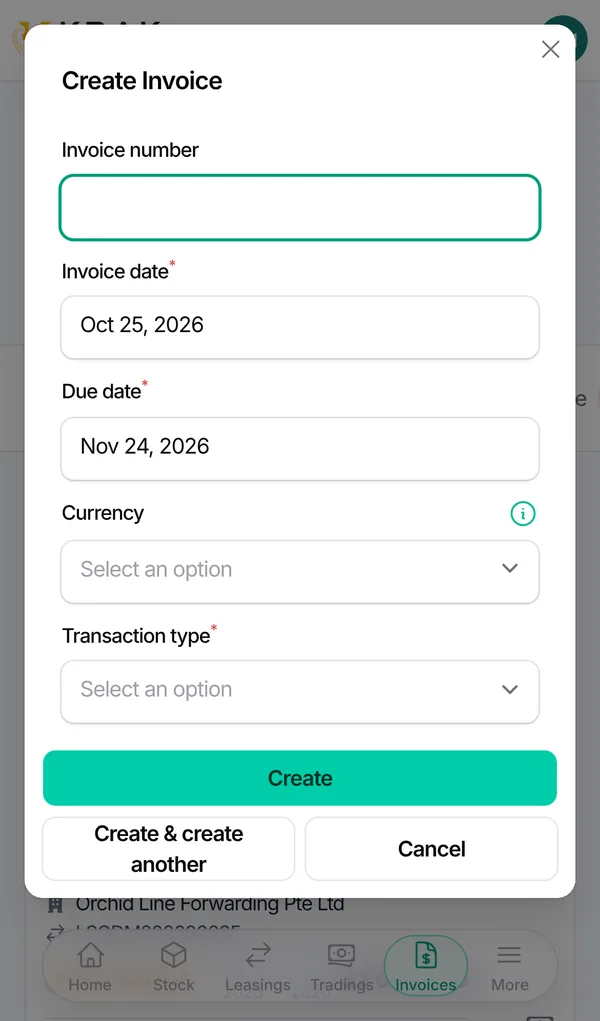
- Pick the Transaction Type (Sale or Purchase), the Company, the Invoice Type and, if needed, the Deal Type then the lease or trading deal. Choosing a deal fills in the company, its currency and one line per container.
- Check the Invoice Date, Due Date and Currency.
- Fill in the lines: Description (printed on the invoice), quantity, unit price excl. VAT and Detail (optional). Add lines with Add Item.
- For a purchase, enter the supplier's Invoice Number and attach their PDF File.
- Save: the invoice is created as a Draft.
Good to know
- A sale invoice has no number while it is a draft: the number is assigned when it is issued. See Numbering.
- For a sale, the due date uses the client company's Invoice Due Days.
- VAT comes from the VAT Rate set on the company record. Prices are entered excluding VAT; Krak Stack computes the VAT and the total including VAT.
- The suggested currency is the company's (otherwise your workspace's). For a foreign currency, Krak Stack shows the exchange rate applied on save.
- On a sale invoice, Add Discount (percentage or amount) and Set Bank Accounts are available from the invoice.
- Edit is possible in Draft, and in Sent or Overdue for sale and purchase invoices. A paid or canceled invoice can no longer be edited. After editing an issued sale invoice, its PDF is regenerated.
- A trading invoice that already has a payment or a bank reconciliation can no longer be edited with the trading window: adjust the balance from bank reconciliation.
- Deletion: a draft can be deleted. An issued sale cannot be deleted (issue a credit note), an issued purchase is canceled instead, and a paid invoice cannot be deleted.
Frequently asked questions
Why is the Company field greyed out?
For a trading or pickup charge invoice linked to a deal, the company follows the deal and cannot be changed.
Where do I set the VAT rate?
On the client company record, billing section, VAT Rate field.
Can I bill only some of the containers?
Yes: the per diem, pickup charge and trading windows let you choose the containers to bill.
Does my sale invoice get a number when I create it?
No, it shows as "Draft #…" until it is issued.
Can the same supplier invoice number be entered twice?
Not for the same supplier: Krak Stack tells you where that number is already recorded.
Can I edit an invoice I already sent?
Yes while it is sent or overdue. Once paid, use a credit note.