A pickup records that a container left the depot with a release. A drop-off records its arrival at the return depot with a return. These two dates frame the rental and drive the per diem calculation.
Steps: record a pickup
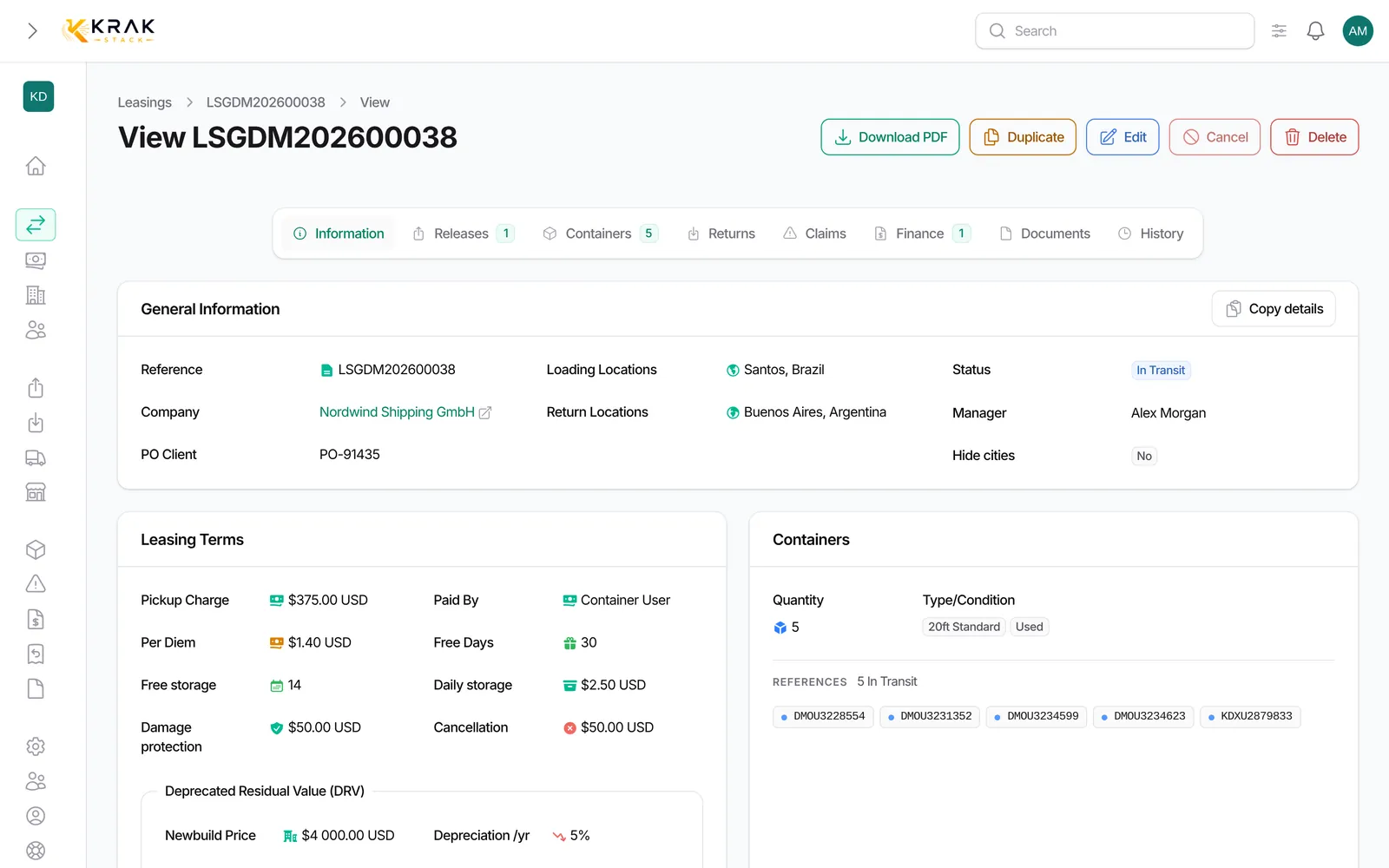
- Open the lease, Releases tab (or the Operations > Releases menu).
- On the release row, click Pickup.
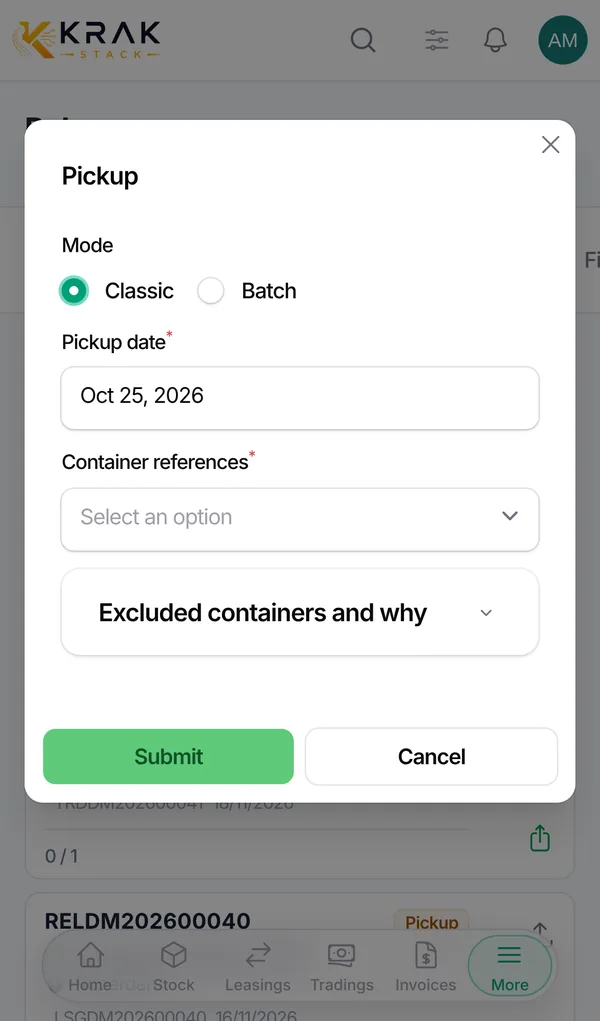
- Choose the Mode: Classic (one date for the whole selection) or Batch (one reference + date line per container, pasted from a spreadsheet).
- In Classic mode, enter the Pickup date and pick the containers in Container references.
- Confirm. A notification sums up the containers picked, skipped or failed.
Steps: record a drop-off
- Open the lease, Returns tab (or the Operations > Returns menu).
- On the return row, click Drop-off.
- Choose the Drop-off mode, the Drop-off date and the containers that arrived.
- Confirm. The container is recorded at the return depot and its rental stops on that date.
Good to know
- Pickup and drop-off dates cannot be in the future.
- A release accepts no more containers than its quantity; a return, no more than the containers it announces.
- For a release from stock, only containers available at the release depot and matching the deal type and condition are offered. The Excluded containers and why section explains why a container of the same depot is not listed.
- For a supplier release, you type the references: the containers are created in Krak Stack at pickup.
- A drop-off dated before the pickup requires ticking a confirmation.
- On the dashboard, Quick Pickup and Quick Drop Off record a movement for containers chosen directly. Each container must be on an open release or return; if a single one is refused, nothing is recorded.
- To correct a date already entered, use Update Pickup Date or Update Drop Off Date in the lease Containers tab.
Frequently asked questions
Can I record a pickup from my phone?
Yes, in Classic mode. Batch mode is only offered on a larger screen.
Can I pick up fewer containers than the release quantity?
Yes. The release shows the Pickup status while some remain to be picked up, then Finalized when the whole quantity has left.
How do I cancel a pickup entered by mistake?
In the lease Containers tab, tick the containers then Cancel Pick-up. A stock container goes back to its previous state; a container created by a supplier release is deleted.
How do I cancel a drop-off?
Same tab, Cancel Drop-off. The container goes back to dropping off if its return is still active, otherwise to in transit.
Why is a pickup cancellation refused?
The container has already been returned on this deal. Cancel its drop-off first, then its pickup.
Does the lease status change after a pickup or a drop-off?
Yes, it is recalculated automatically after every entry and every cancellation.