A pickup recorded by mistake can be cancelled; Krak Stack then puts the containers, the release and the deal back exactly as they were. A release that is no longer needed is deleted or cancelled, depending on whether it has already been used.
Krak StackFig. 1
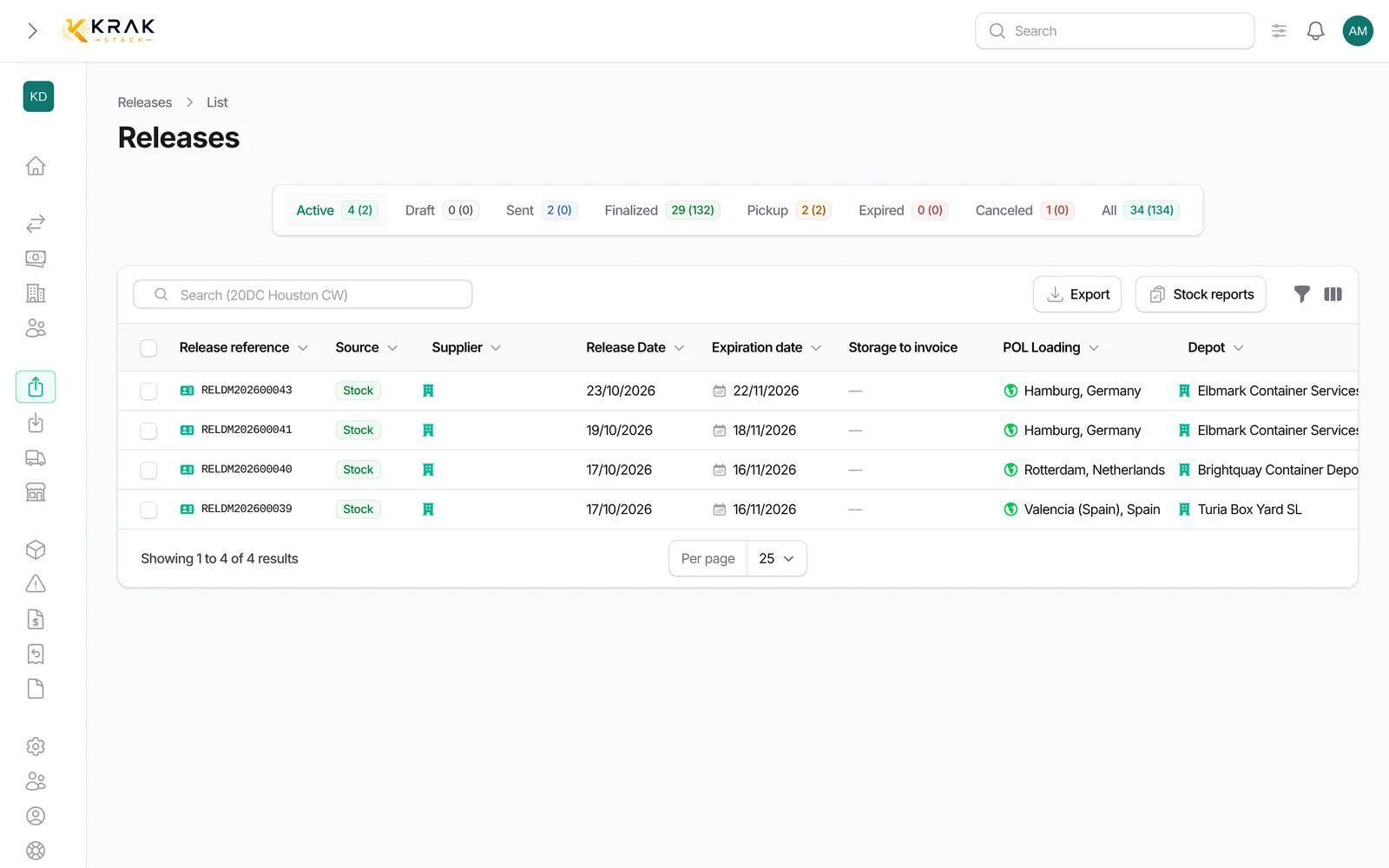
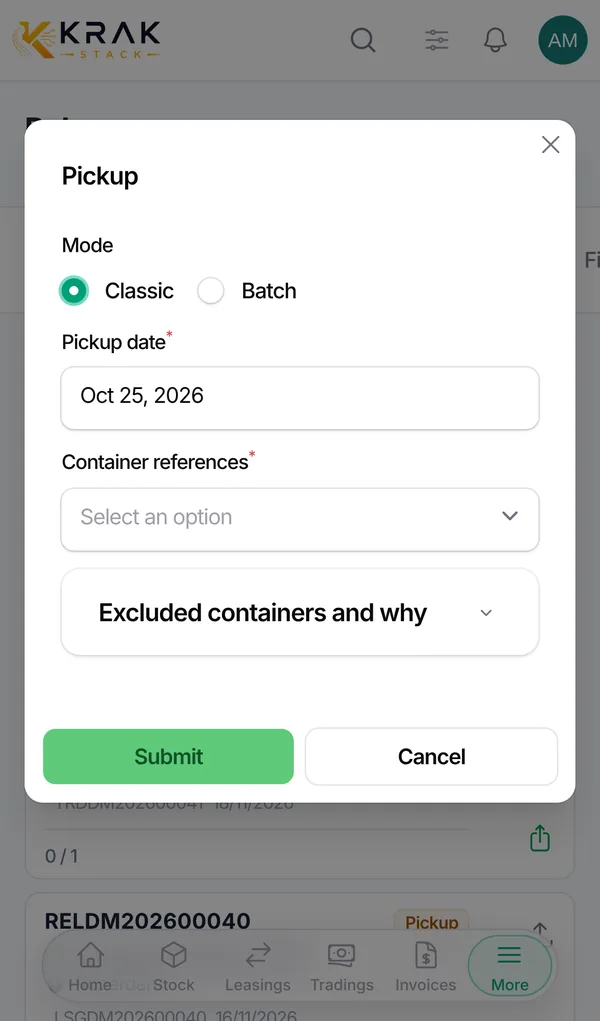
Steps: cancel a pickup
- Open the lease or the trading deal, Containers tab.
- Tick the containers concerned.
- Click Cancel Pick-up, then Confirm Cancellation.
- A notification shows the number of pickups cancelled and any errors.
What the cancellation puts back
- Stock container: it goes back to the depot. It stays reserved on the release if a release of the deal still covers it; otherwise, it becomes free in the depot again.
- Container created by a supplier release: it is deleted. If it already appears on an invoice, it is archived and a warning tells you a credit note may be needed.
- Release: it goes back to Sent if no pickup is left on it (or Expired if its date has passed), Pickup if some remain.
- Deal: its status is recalculated. An In Transit lease goes back to Released; a Completed deal reopens.
- Sale: the sale date, buyer and price written on the container by this pickup are cleared.
- Depot storage: the depot stay closed by the pickup is reopened.
Steps: stop a release
- No container has left: use Delete Release. If it is linked to an automatic purchase trading deal, both are deleted together.
- Some containers have left: deletion is refused. Use Edit Release and bring the quantity down to the number already picked up: it becomes Finalized.
- Release sent and units to drop: on the deal page, click Cancel and choose the containers or units. The release is reduced, or becomes Canceled if it no longer serves any purpose.
- If the cancelled release had been sent, click Send cancellation to depot: the depot receives the PDF marked CANCELLED.
Good to know
- Cancellation is refused if the container has already been returned on this deal: first cancel its drop-off with Cancel Drop-off.
- It is also refused for a supplier container already committed to another deal.
- Pickup charge invoices already created are never changed: correct them or issue a credit note if needed.
- Cancel only applies to units that have not left yet: a container that has left is handled with a return.
- The announced deal quantity does not change with Cancel: cancelled units are tracked separately.
Frequently asked questions
Can I cancel the pickup of a single container?
Yes, tick only that container.
Does the deal keep a trace of the cancellation?
Yes, the cancellation is written to the container history, and the deal status change to the deal history.
I cancelled a pickup on a completed deal: is that possible?
Yes. The deal is reopened, then its status is recalculated as if the pickup had never happened.
Is the depot notified automatically?
No. The cancellation notice is only sent when you click Send cancellation to depot.