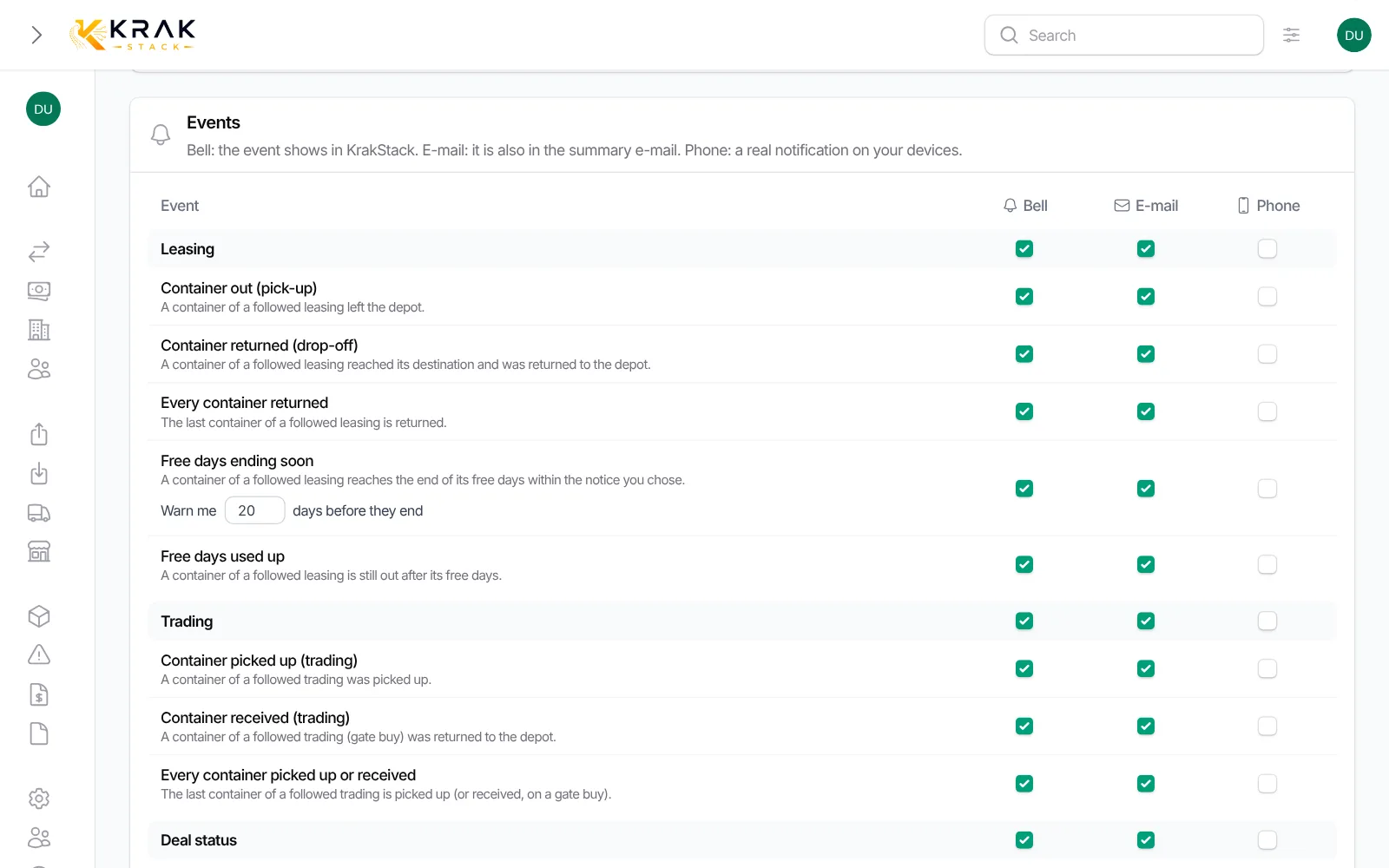
An administrator sets the starting settings of the whole team: which events reach the bell and the summary e-mail, and how often that e-mail is sent. Each user can then change theirs in My notifications.
Krak StackFig. 1
Steps
- Open Settings > Alerts, Notifications tab.
- Summary e-mail section: choose the Frequency (Once a day, Working days (Monday to Friday) or Once a week), the Day if needed and the Sending time.
- Events section: tick Bell and E-mail for each event. The box at the top of a column ticks a whole family.
- Click Save.
Good to know
- These values apply to the users who did not choose any. An event a user left on the company value follows your changes; an event they set themselves keeps their choice.
- A user who keeps Follow the company setting gets the summary e-mail at the rhythm chosen here.
- The sending time follows the company time zone.
- Phone notifications are not set here: each person turns them on for their own devices.
- Only for users with the right to set up the workspace.
Frequently asked questions
Do my changes overwrite the team's choices?
No. They only change the events that each person left on the company value.
Which settings does a new user get?
The ones of this page. They can change them from their first sign-in in My notifications.
How do I stop the summary e-mail for the whole company?
Untick E-mail for every event. People who ticked the e-mail themselves keep receiving it.
What is the difference with dashboard alerts?
Notifications are about followed deals and your markets. Alerts flag what needs an action (overdue invoices, late pickups…) and are set in the Dashboard alerts tab.
Why do I not see this tab?
Your role does not have the right to set up the workspace. Ask an administrator.