Besides the bell and the e-mail, Krak Stack can send real notifications to your phone and computer, even when the application is closed. Each device is turned on separately.
Krak StackFig. 1
Steps
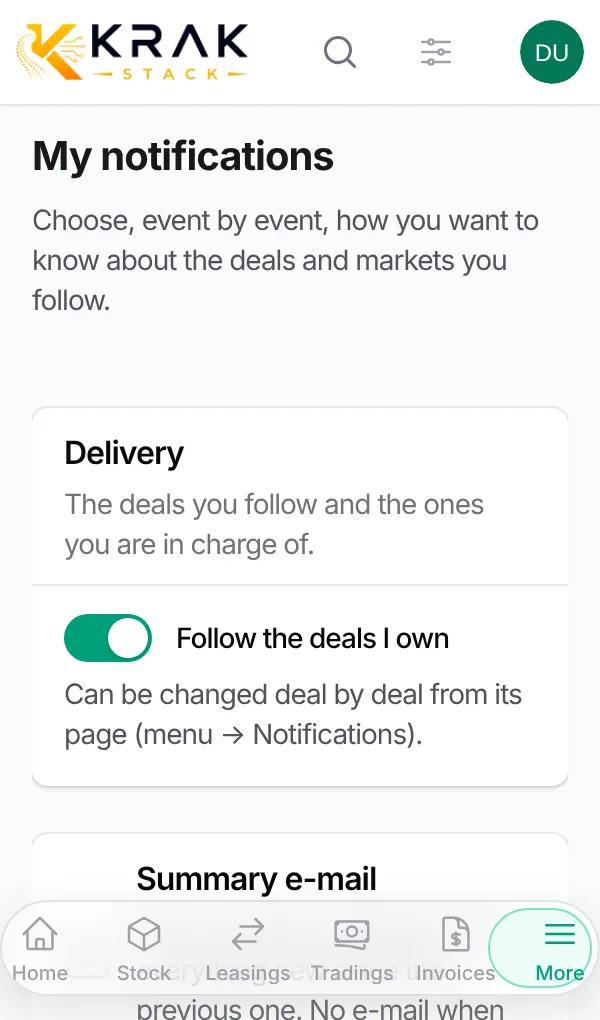
- On the device to turn on, open Krak Stack then the user menu, My notifications.
- In the On my phone and computer section, click Turn on here and accept the browser request.
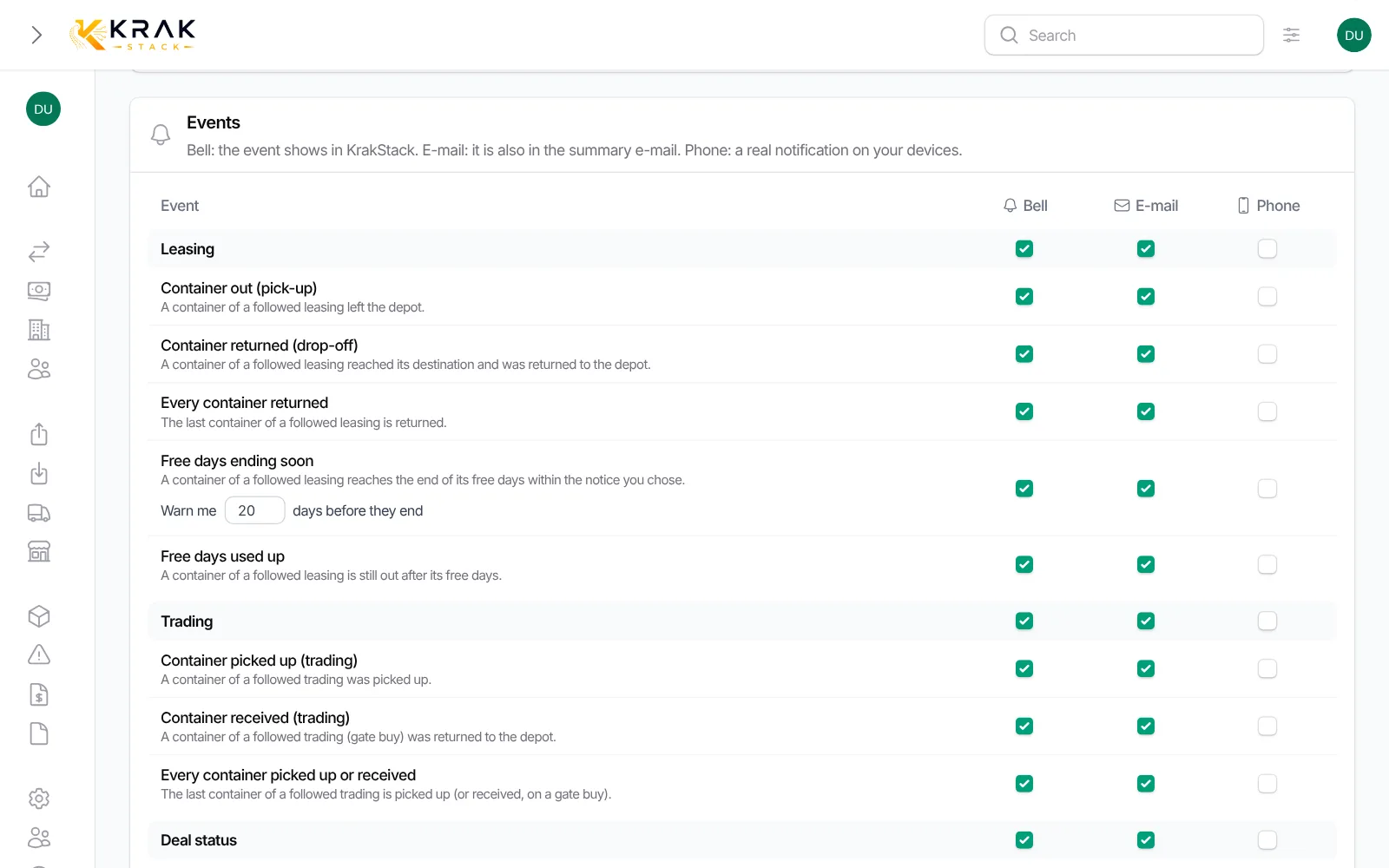
- In the Events section, Phone column, keep the events you want and untick the others.
- Click Save.
- Click Send a test to check that the notification arrives.
On iPhone and iPad
- Open Krak Stack in Safari.
- Tap Share then Add to Home Screen.
- Open Krak Stack from the home screen icon and come back to My notifications to click Turn on here.
Good to know
- Supported browsers: Chrome, Edge, Firefox and Safari.
- When turned on, the device gets every event of your bell. Then untick Phone for the ones you do not want.
- My devices lists your devices and the date of the last notification. Remove this device stops it.
- Turn off here stops notifications on the device you are using.
- On a deal, the Notifications window turns Phone on or off for that deal only.
Frequently asked questions
The message says notifications are blocked, what do I do?
You refused the browser request. Allow notifications for Krak Stack in the browser or phone settings, then reload the page.
The test does not arrive.
Remove the device in My devices, then click Turn on here again. Check also that Do Not Disturb is off.
Do I need to turn on each device?
Yes, each phone and each computer is turned on separately, from the device itself.
Can my colleagues see my devices?
No. In a deal's Notifications window, they only see that a person has no device turned on yet.
Do phone notifications replace the e-mail?
No, the three channels are independent. You choose, event by event, the ones you want.