A Delivery sells containers from your stock and includes the transport: a haulier collects them at the depot and brings them to the client's address. The deal carries the sale, the transport and the two documents that go with it: the Transport order for the haulier and the Delivery note the client signs.
1. Create the sale
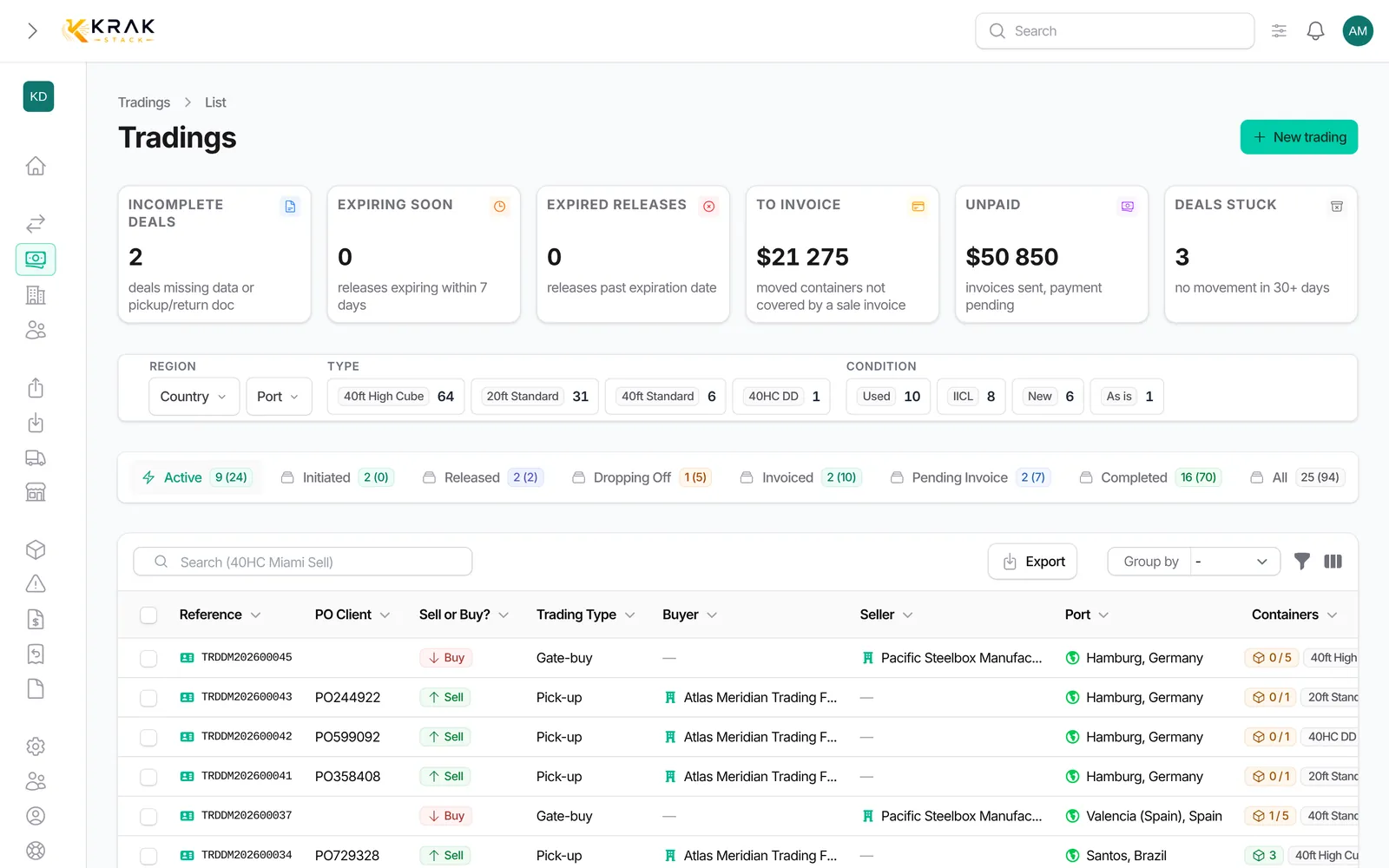
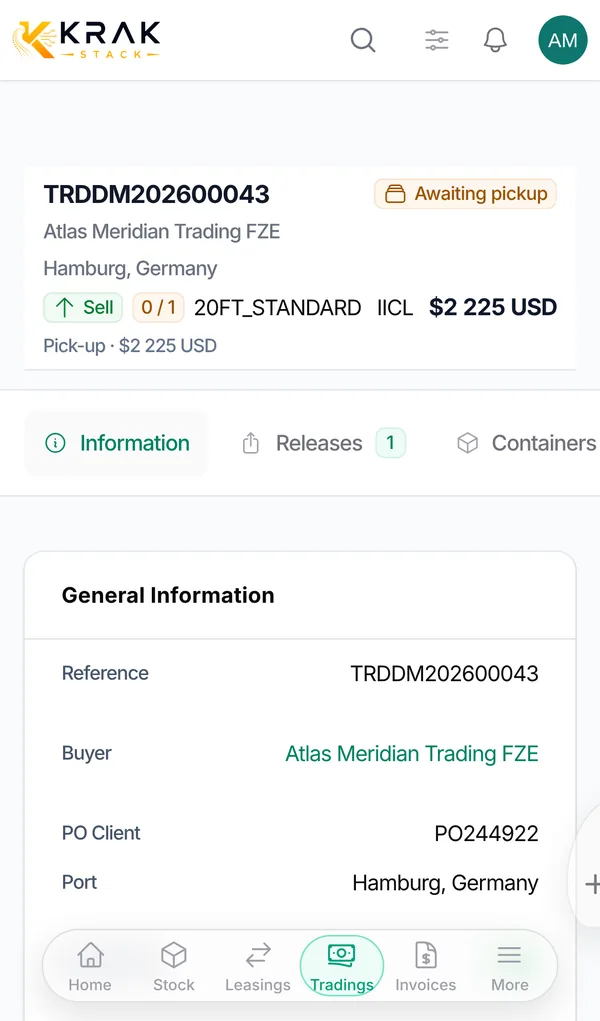
- Open Trading, click New trading, choose Sell then the type Delivery. Delivery is only offered for a sale.
- Choose the Buyer. The delivery address is filled with the client's address as long as you have not typed one yet. Change it if the truck goes elsewhere (a site, a farm, a warehouse).
- Stock port (pickup): the port where your containers are stored and taken from. It is not the client's port: the delivery address has its own section.
- In the Delivery section, choose the Transporter and, if you know it, the From depot. Only the depots of the stock port are offered.
- Enter the Haulier quote (what the haulier charges you) and the Freight billed to client. The freight margin is the difference. These amounts are shown only to users allowed to see deal amounts.
- Enter the Scheduled date and any Notes for the driver, choose the types, conditions and quantity, then save.
2. Choose the containers and issue the release
- Book the containers in the Containers field of the deal: it offers the containers available at the stock port.
- In the Releases tab, create the release. It opens on the transport's departure depot. When the release names another depot, the transport follows it, so the haulier is always sent to the depot that holds the release.
- Send the release to the depot as usual.
3. Order the transport
Click Order transport. Two cases:
- you send the order by email: the Transport order is attached;
- you already ordered by phone: record it as ordered without sending anything.
The button is greyed out until the haulier and the scheduled date are filled in: its tooltip says what is missing. Once ordered, Transport order and Resend transport order are in the menu More of the deal, and the Transport section of the deal shows where the transport stands.
The Transport order tells the haulier everything and nothing more: pickup depot with its address and contacts, the release number to present at the gate, your deal reference, the containers (or the quantity per type and condition if the numbers are not known yet), the delivery address, the scheduled date, the client's contact on site and your notes. It never shows a price.
4. Pickup and delivery
- When the haulier collects the containers, record the Pickup on the release, as for any pickup.
- When a container arrives at the client's, click Deliver on its line in the Containers tab and enter the delivery date (select several lines to deliver them on the same date). Each container is delivered on its own date: a split delivery is normal.
- A container delivered by mistake goes back with Undo delivery.
- Print the Delivery note (menu More of the deal) and have the client sign it on reception. It lists the containers with their number, type and condition, the delivery date (a blank line to fill in if the containers are not delivered yet) and a reception block: name, date, signature and remarks or damage.
5. Invoices
- The client invoice carries the containers and the freight billed to the client. The freight appears once, on the first invoice of the deal, even when you invoice in several times.
- The haulier quote becomes a purchase invoice from the haulier when the transport is ordered.
- The deal follows the usual statuses: it is completed when the containers are delivered and the sale invoices are paid.
Good to know
- Without a haulier quote or freight, the transport stays a draft: you can still order it.
- Changing the depot of the release changes the departure depot of the transport, unless the transport is already delivered or cancelled.
- Users who cannot see deal amounts see neither the haulier quote, nor the freight, nor the freight margin, on the deal, the transport sheet or the list.
- The transport is listed under Transports, named after the deal and the haulier.
Frequently asked questions
Why is the port called "Stock port (pickup)"?
On a delivery the port is where your stock is, not where the client is. The containers offered and the release depot depend on it; the truck's destination is the delivery address.
The delivery address did not fill in. Why?
It fills in only when the client has an address on its company sheet and the delivery address is still empty. An address you typed is never replaced.
Can I order the transport by phone?
Yes. Use Order transport and record it as already ordered: nothing is sent, the transport is marked ordered.
What does the haulier present at the depot gate?
The release number printed on the Transport order, with your deal reference. Both are on the document.
Can containers be delivered on different days?
Yes. Click Deliver on each container with its own date. The delivery note shows each date.
Who signs the delivery note?
The client, on reception: name, date, signature, and any remarks or damage before signing.
How do I cancel a delivery?
Before pickup, cancel the containers or the deal with Cancel, as for any sale, and tell the haulier if the transport was ordered. To cancel only the transport and keep the sale, use Cancel transport in the menu More. After delivery, use Undo delivery on the container first.